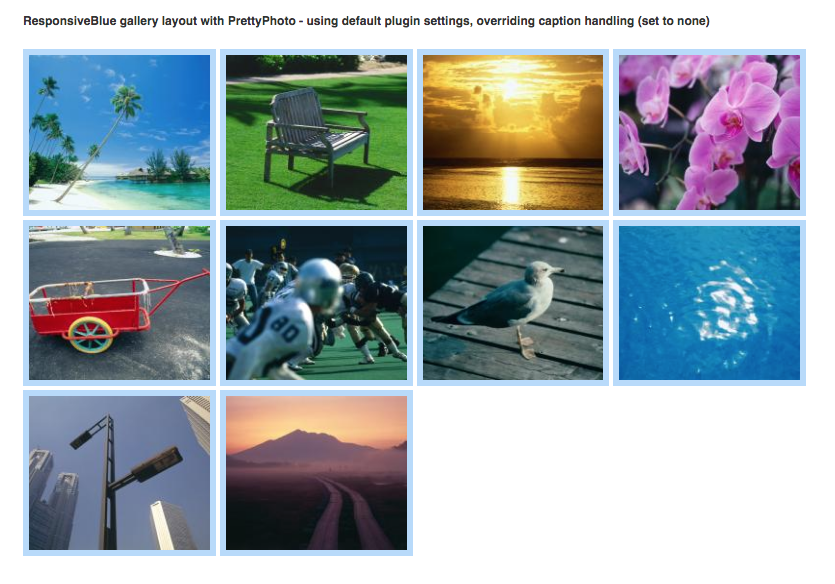
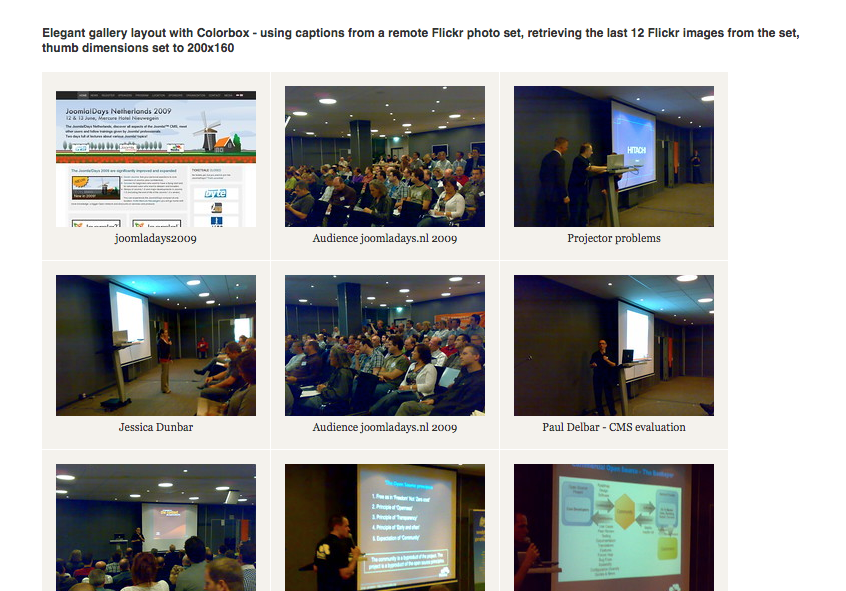
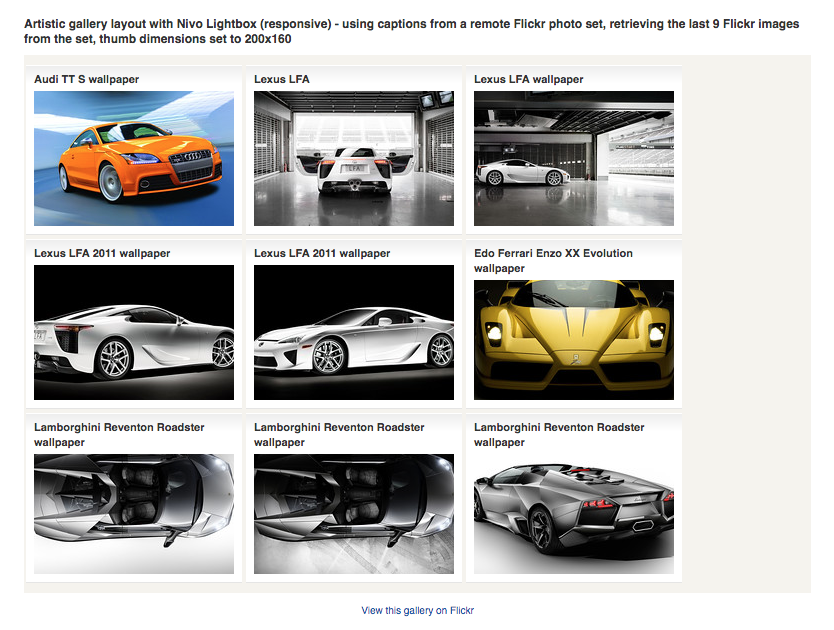
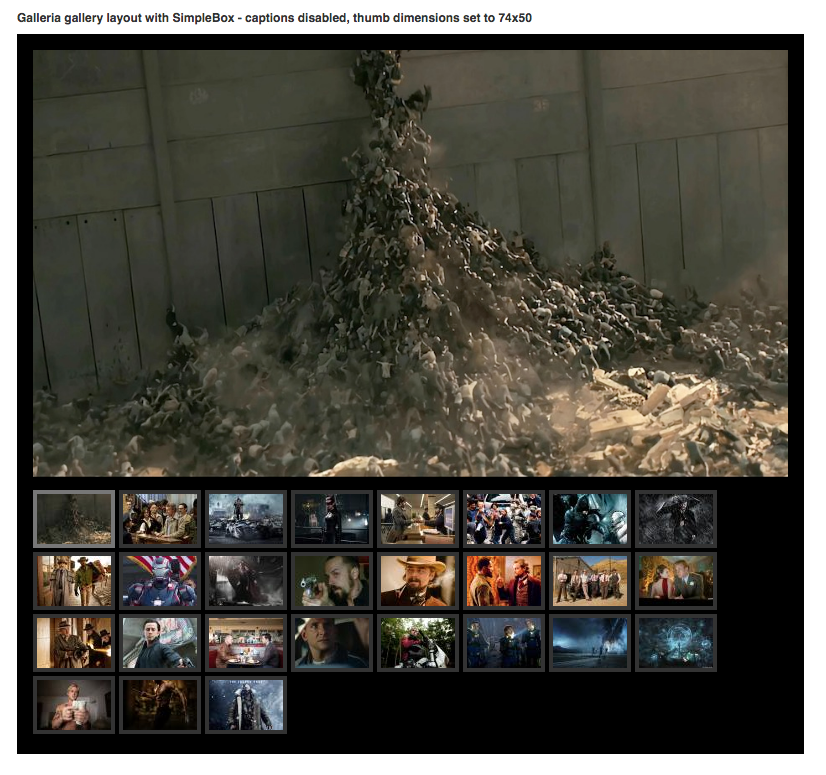
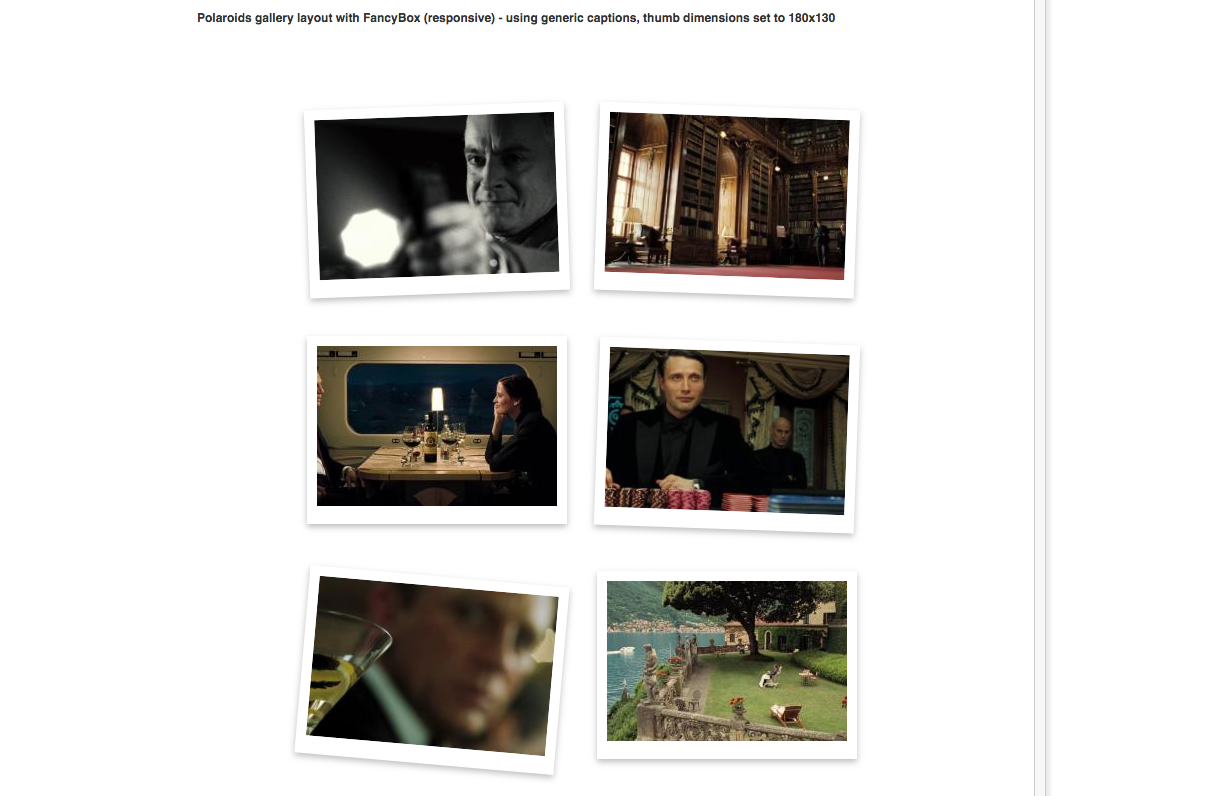
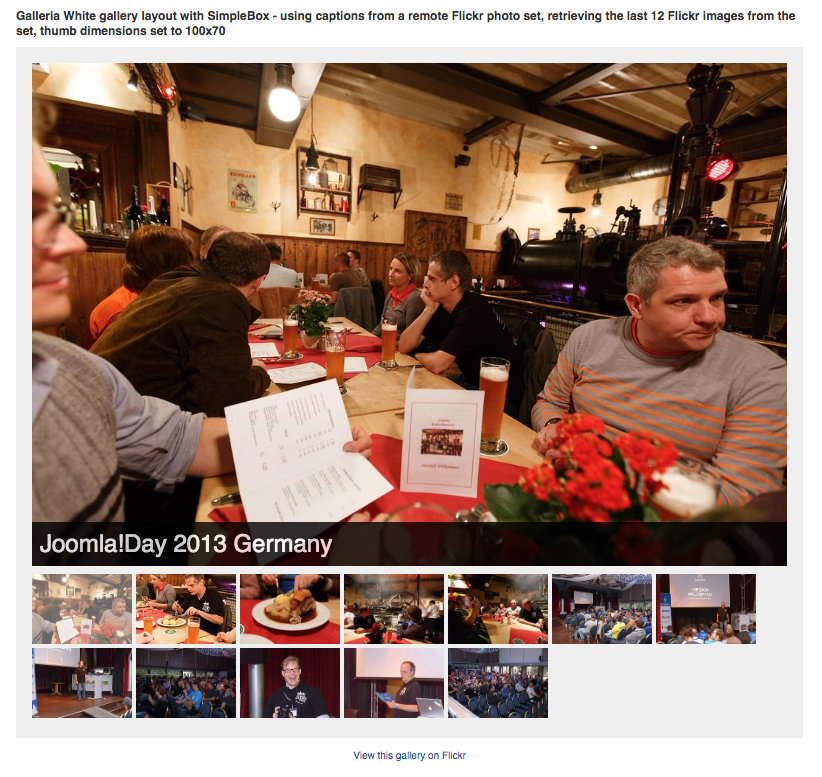
 Adding image galleries inside your Joomla articles has never been easier!
So now:
a) you don't need to have an additional gallery component to display your images and/or redirect your visitors elsewhere, as the galleries integrate with your Joomla articles, K2 items, Virtuemart/HikaShop products or any other component that allows "plugin parsing" and also utilizes Joomla WYSIWYG editor plugins.
b) you focus more on content writing and less on managing the images! You are not limited to embedding one gallery per article, you can embed as many as you want.
c) you don't have to worry about upgrades. Simply install any new version of the extension on top of the old one and your galleries will inherit any new features! Fully backwards compatible and better still, it works with Joomla versions 1.5 to 3.x!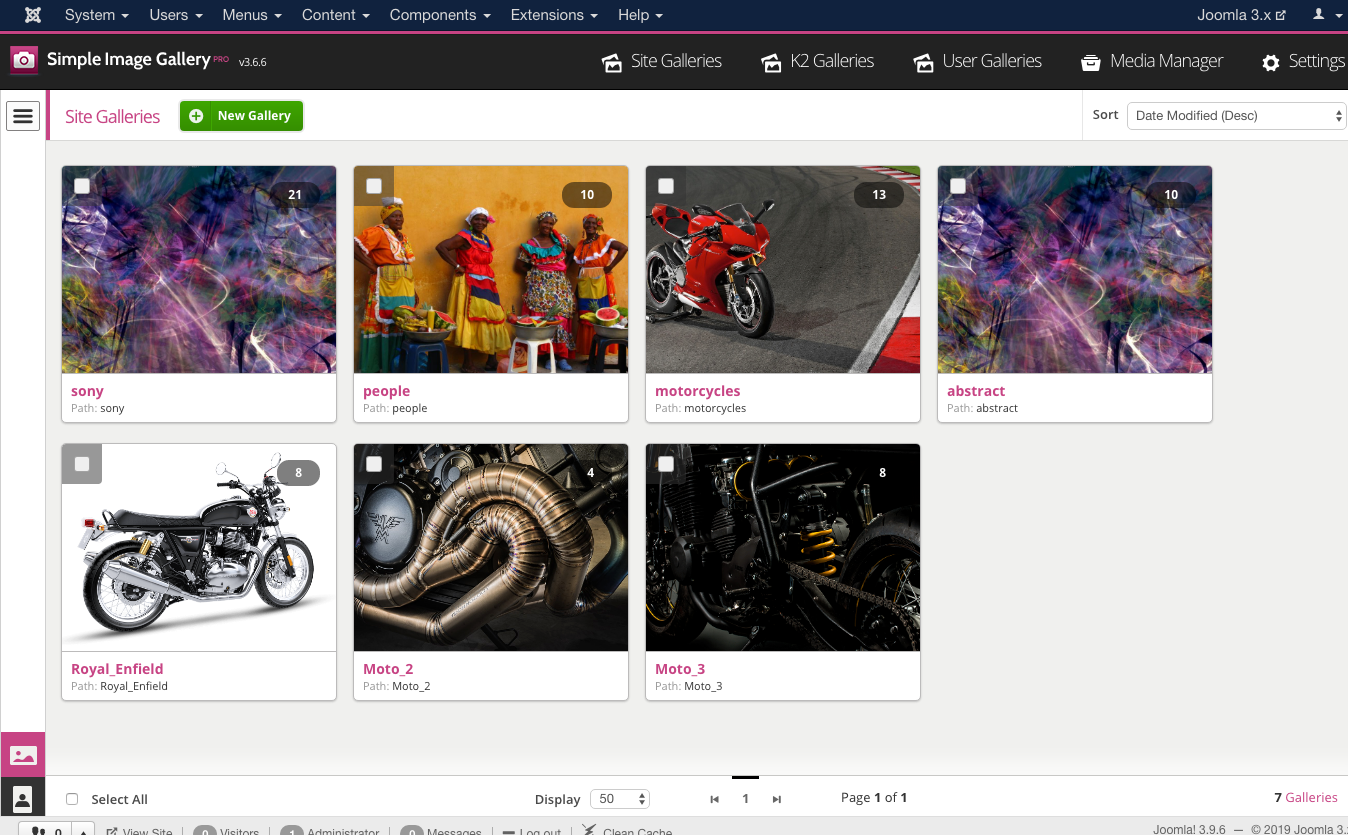
FEATURES
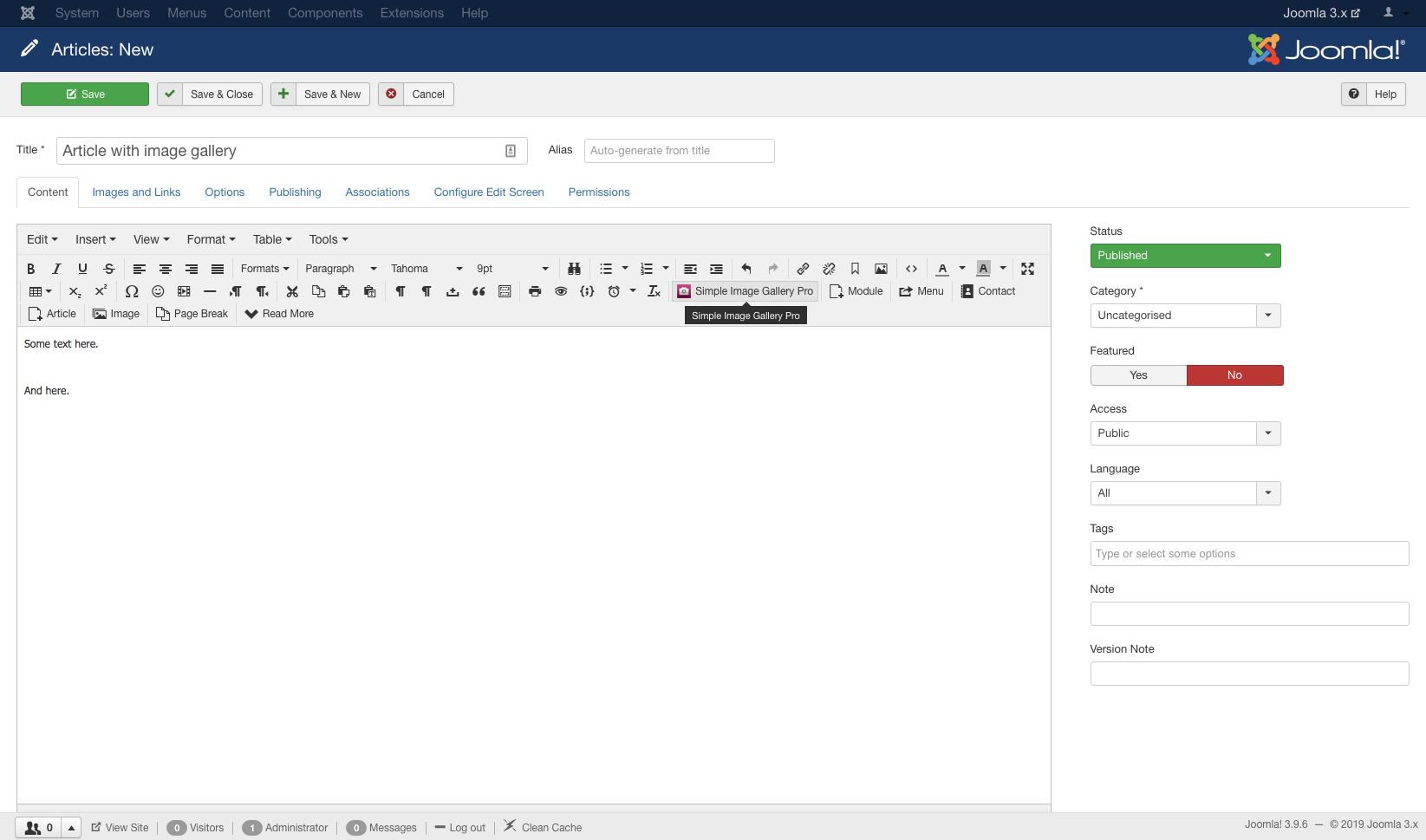
- Amazing backend component and WYSIWYG editor plugin allow you to fully control gallery creation, previewing and editing, either on a centralized place (the component) or inside any component form that load a Joomla WYSIWYG editor: We have created a new design philosophy that blends amazingly well with the Joomla admin user interface. And it's also consistent on all supported Joomla versions (1.5 to 3.x). You, your clients and your content writers will love it. And when you upgrade to a newer Joomla version, they won't need to adapt to a new design, because the design is consistent across different Joomla versions.
- Fully configurable thumbnails: Adjust the default width and height, set the thumbnail quality. You can even have different galleries displayed with thumbnails of different dimensions on the same page! You set all this options right before inserting an image gallery into your content. It's a piece of cake.
- Captions in your galleries: Don't just create image grids. Add meaningful information under each thumbnail! Using the Simple Image Gallery Pro backend interface (accessible via the component or the WYSIWYG editor plugin) you can optionally provide a short title and a more detailed description text per image. You can even use full HTML code inside the image description which is displayed on the lightbox popup. Don't want to add captions? You don't have to, it's completely optional. Continue to just upload images inside Simple Image Gallery Pro and let it do everything else!
- Full JoomFish/Falang support: for captions in multiple languages!
- Smart thumbnail resize: If enabled, thumbnails are resized to fit the thumbnail viewport as set in the plugin parameters. This option is ideal when you want to display images of different aspect ratio in thumbnails of the same dimensions.
- 10 amazing gallery layouts (themes), including "Polaroids" and the JavaScript enhanced "Galleria", "Galleria White" & "SlickShow1" which transform your gallery to a slideshow.
- Gallery layouts are based on the MVC architecture, which means you can fully override all gallery layouts (both HTML and CSS) to match your needs - and without caring about future updates of the plugin breaking your unique gallery layout! You just place the overrides inside your Joomla template's folder structure.
- 13 of the best popup (lightbox) engines, most fully responsive to match your site responsive/adaptive design! Most popup engines are powered by jQuery, but we also provide 2 that utilize "vanilla" JavaScript as well. The jQuery ones are loaded in "no conflict" mode to avoid any JavaScript conflicts with other Joomla extensions that may also utilize jQuery-based scripts.
- Flickr Gallery/Album/Set integration: Probably the easiest way to embed a Flickr set of images... Just paste the Flickr URL within the plugin's { gallery} tags like this { gallery}http://www.flickr.com/photos/joomlaworks/sets/72157626907305094/{/gallery} and you're done!
- Single thumbnail mode: only one thumbnail shows up in place of your normal gallery but once you click on it, you can browse though the entire source gallery folder! This mode is ideal for powerpoint-like presentations.
- Thumbnails are created by the source images, but even the source images can also be resized: By utilizing external cloud services, you can make sure your "source" images never exceed a given width (e.g. 900px). That way, you avoid causing any confusion to your visitors by opening a 2000px wide image inside a lightbox that covers the entire browser window, just because one of your content writers uploaded an extremely large image! Some of the popup engines go one step further and will automatically adapt the source image to fit the browser window, when their original or "cloud resized" dimensions exceed the actual viewport.
- Allow source image downloading: want your visitors to download the original images you uploaded? Just turn on the related component parameter and your visitors will see a download link the gallery popups.
- Slideshow option built into most popup engines: if you choose a popup engine that is "slideshow capable", then your visitors don't need to manually click the navigation elements inside the lightbox popup to move back and forth in the image set. They can simple hit the slideshow play button and the images will auto-slide until the end of the gallery is reached.
- Embed a module position in the popups: want to serve banners in all your popup images? Just include a module position which fetches banners from some banner module and let Simple Image Gallery Pro do the rest!
- Print stylesheet: A "print" stylesheet makes sure your galleries won't look messed up when visitors print your articles (cause browsers don't render background images when printing). Simple Image Gallery Pro hides all your galleries and puts an anchor link in place, when printing a page with galleries on it. So your visitors have a point of reference for their galleries and if they print your pages as PDFs, the get working links to click on when they view the PDF file!
- Simple Image Gallery Pro uses the Joomla API to attach the various CSS and JS files required for the galleries: This makes it possible to use some of the many "compression" plugins (from the Joomla Extensions Directory) to "mashup" all these files in just 1 CSS and 1 JS file. More over, the thumbnail creation engine is written from the ground up to consume the least possible resources from your server, making Simple Image Gallery Pro "shared hosting" friendly too!
- Fully integrates with K2, the popular content extension for Joomla, inside the "Image Gallery" tab of the K2 item forms.
- Mobile/tablet device friendly: tested on iOS and Android devices of various dimensions - utilizing the "responsive" popup engines, you can also make the viewing experience better with touch support for navigating between images.
- Advanced features include the setting of different gallery layouts (themes) and/or popup engines per gallery on the same page!
- New extended syntax for more flexibility (for power users). Allows you to use multiple gallery layouts and/or multiple popup engines under the same page!
- Backwards compatibility with the free version. You just uninstall the free version, install the PRO version and you're done! No need to re-edit your existing content items (articles) that previously included image galleries, inserted with the free version. If you forget to uninstall the free version, Simple Image Gallery Pro will gently remind you.
- Requirements auto-detect: if something is not set up properly in your site or server or if a selected image folder is wrong or already deleted, preventing Simple Image Gallery Pro to operate properly, the extension can detect any limitations and notify you accordingly.
- Frontend image gallery uploading is now possible to isolated user folders! That means your community's users or your site's content contributors can now use the handy Simple Image Gallery Pro editor button to upload and manage image galleries for their content. This option is applicable to any Joomla extension that allows frontend editing for its content (e.g. K2 or the default Joomla article system).
- Better ACL integration for Joomla 2.5 or later. You can now assign permissions to create, edit and/or delete to separate Joomla user groups in the backend.
- Enforce a file size limit (e.g. 300kb or 2mb) for each image in the gallery uploader.
- Reads EXIF orientation data and properly rotates (or flips) images, which means there's now no need to use desktop software to manipulate image orientation first (especially on images taken on pro DSLR cameras).
- Compatible with Joomla 1.5, 2.5 & 3.x.
- Compatible with PHP versions up to 7.4 - although not tested explicitely on PHP 8, it should work just fine.
THE NEW BACKEND MANAGEMENT INTERFACE
-
 Insert a new image gallery using the editor button Insert a new image gallery using the editor button
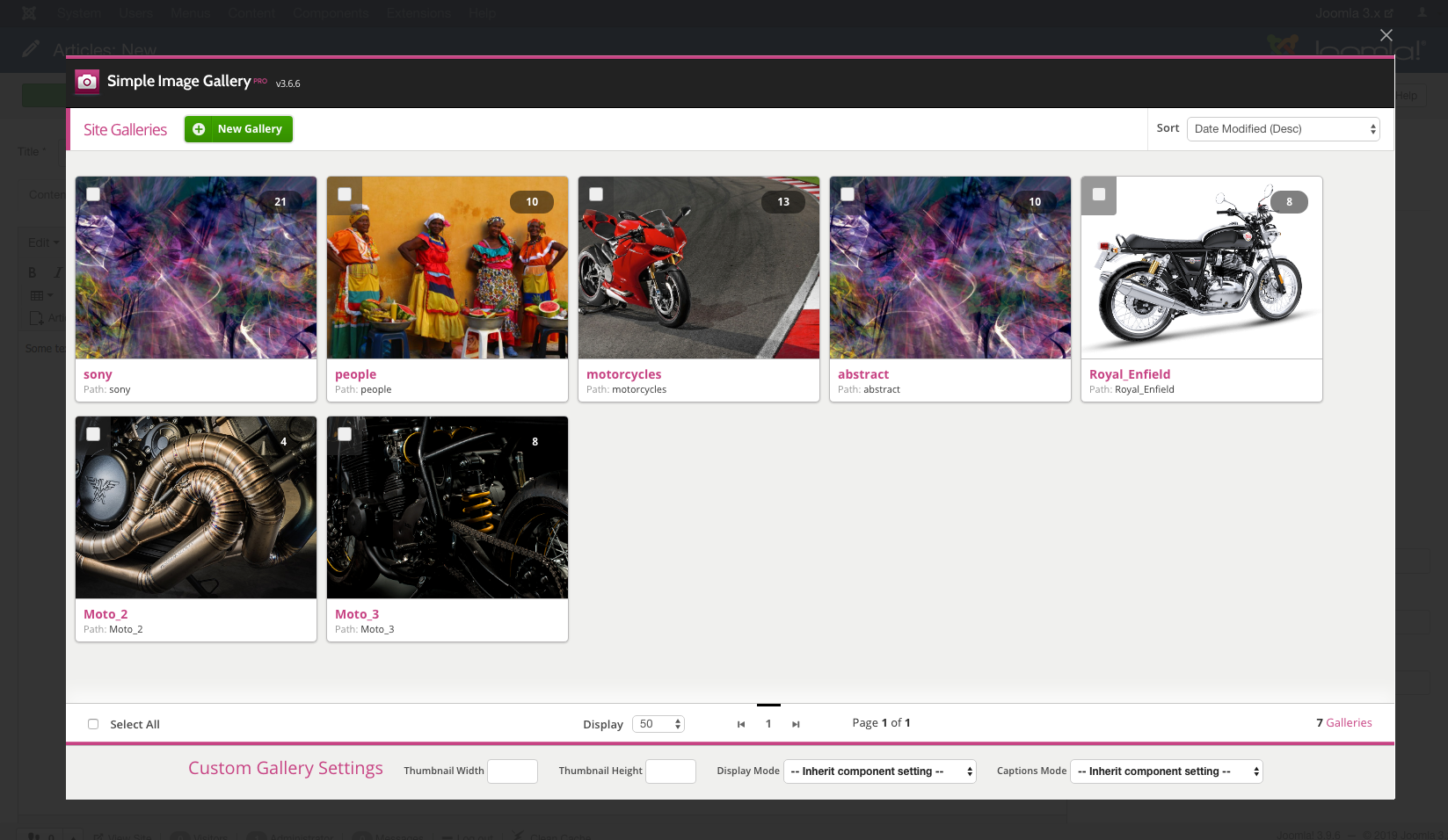
 - Browse existing galleries Browse existing galleries
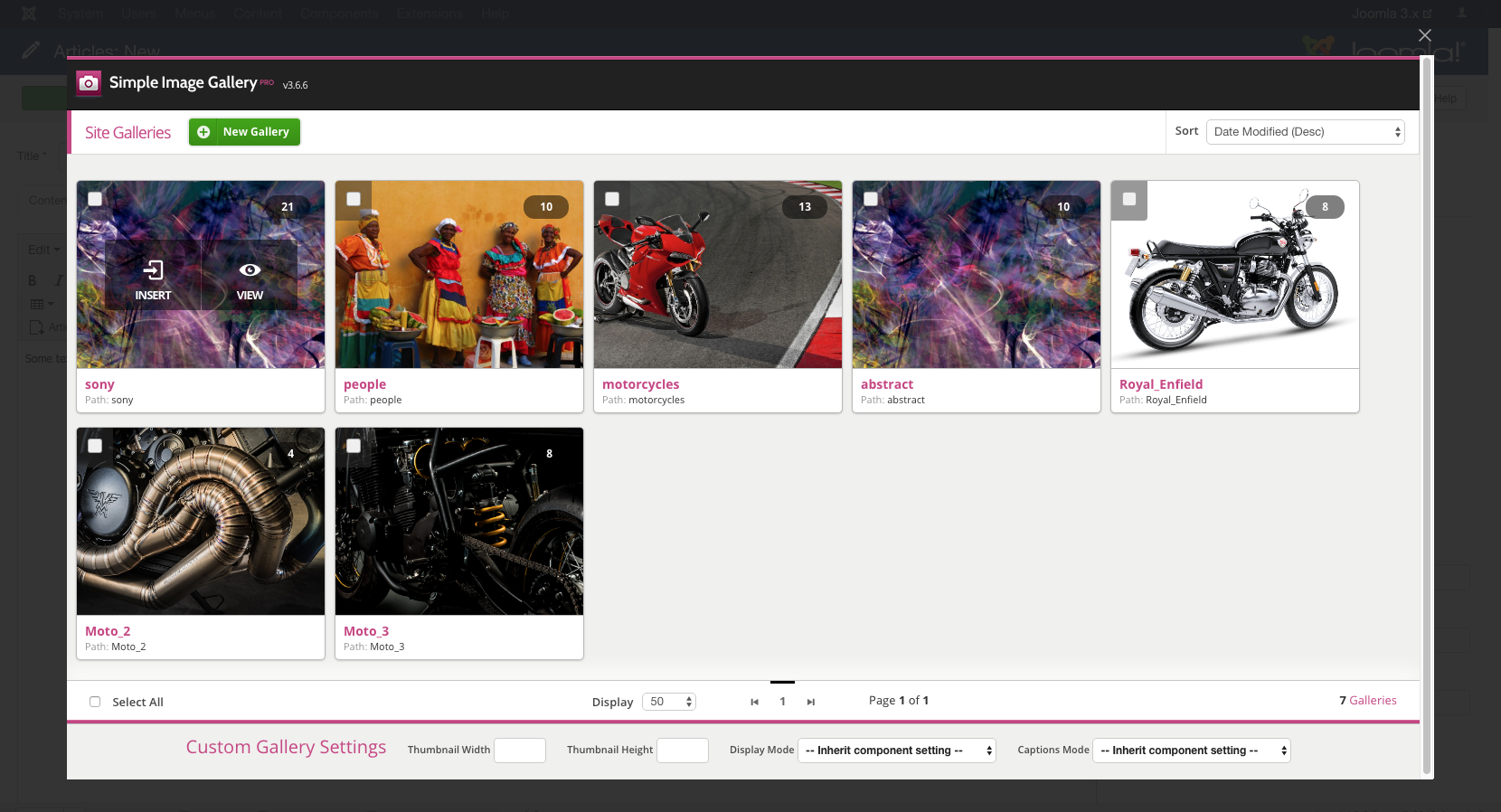
- Hover on each gallery for available actions Hover on each gallery for available actions
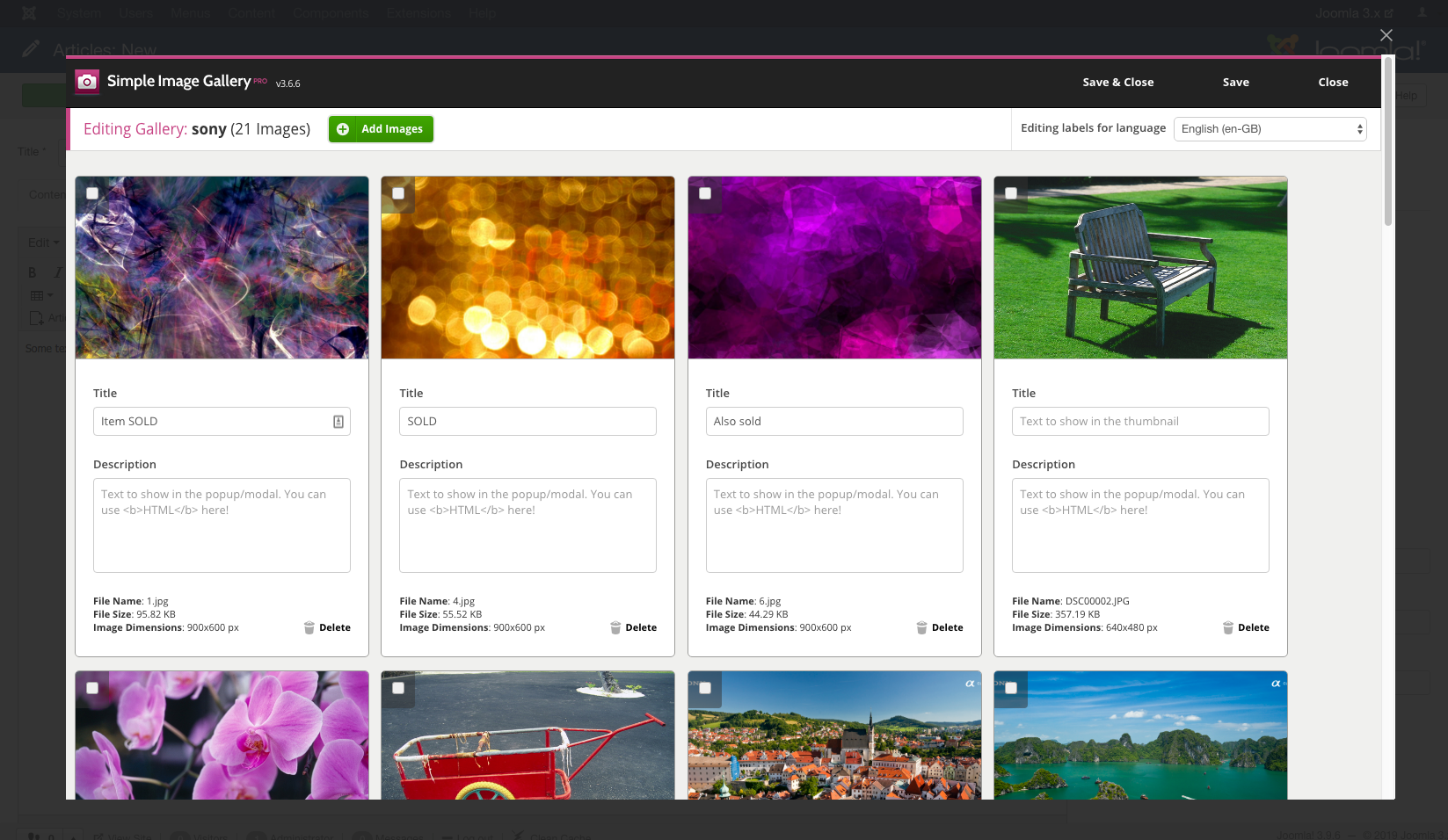
- Edit an existing image gallery Edit an existing image gallery
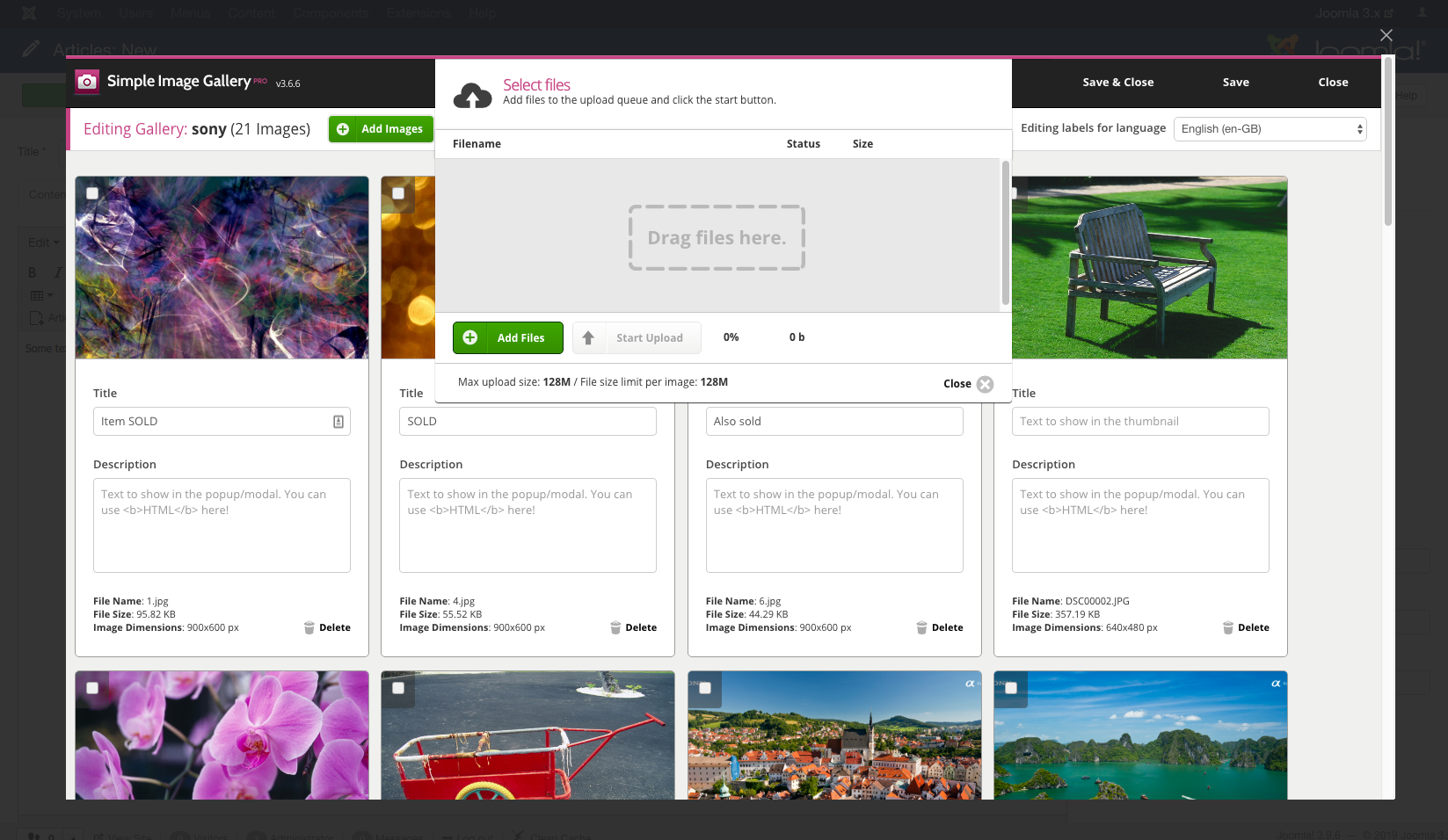
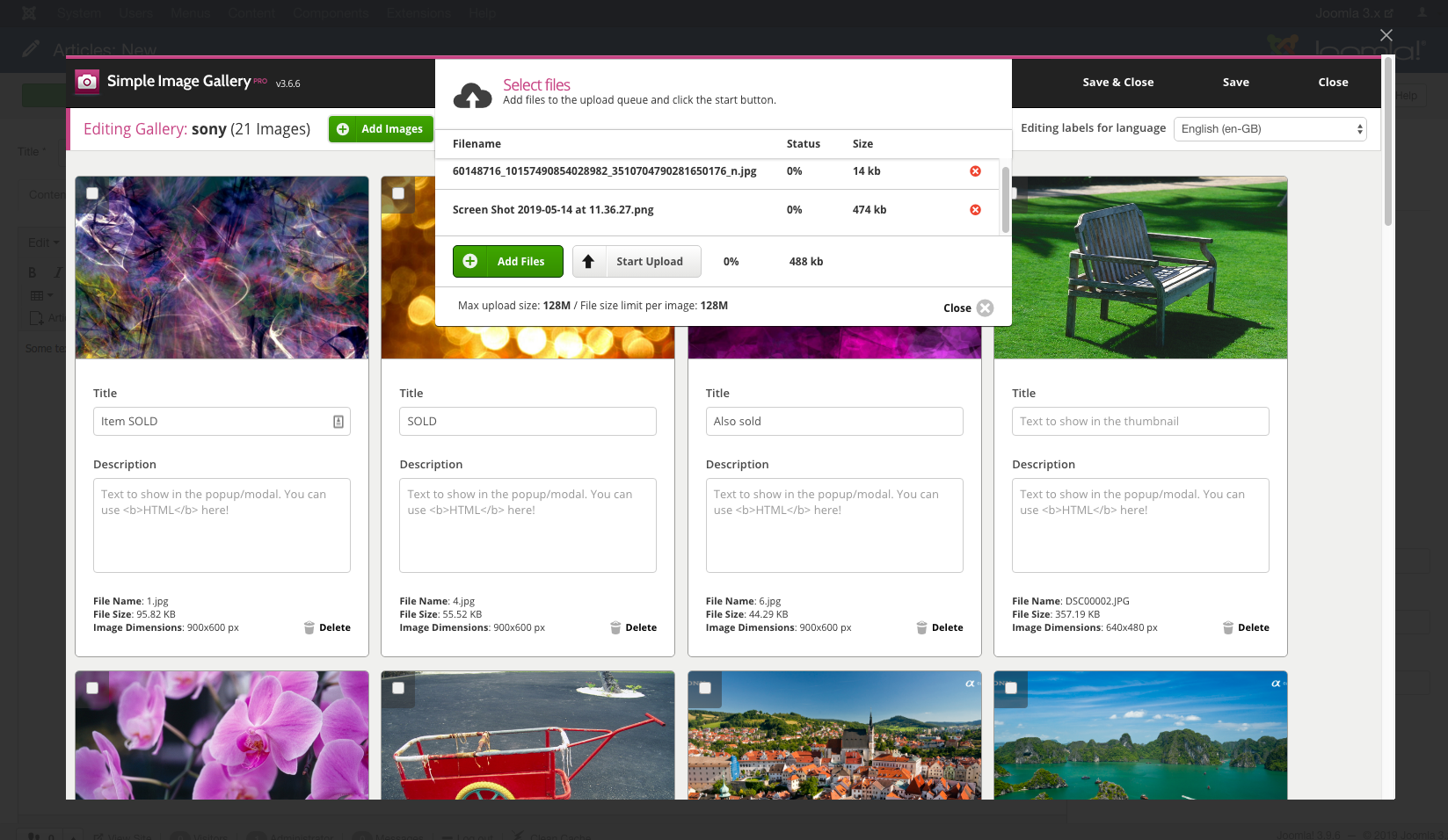
- Upload more images Upload more images
- Drag and drop images in the upload window Drag and drop images in the upload window
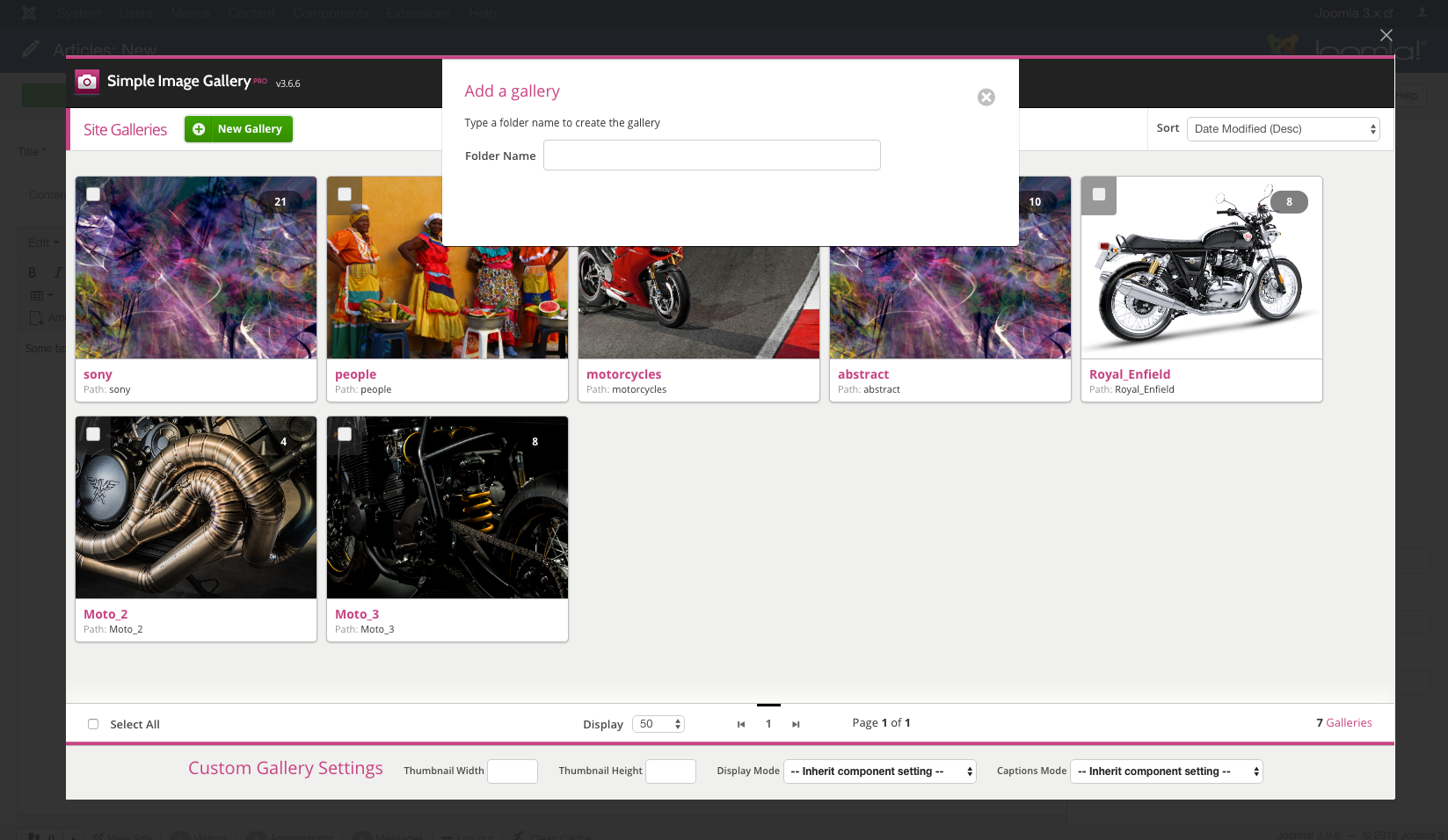
- Or create a new gallery... Or create a new gallery...
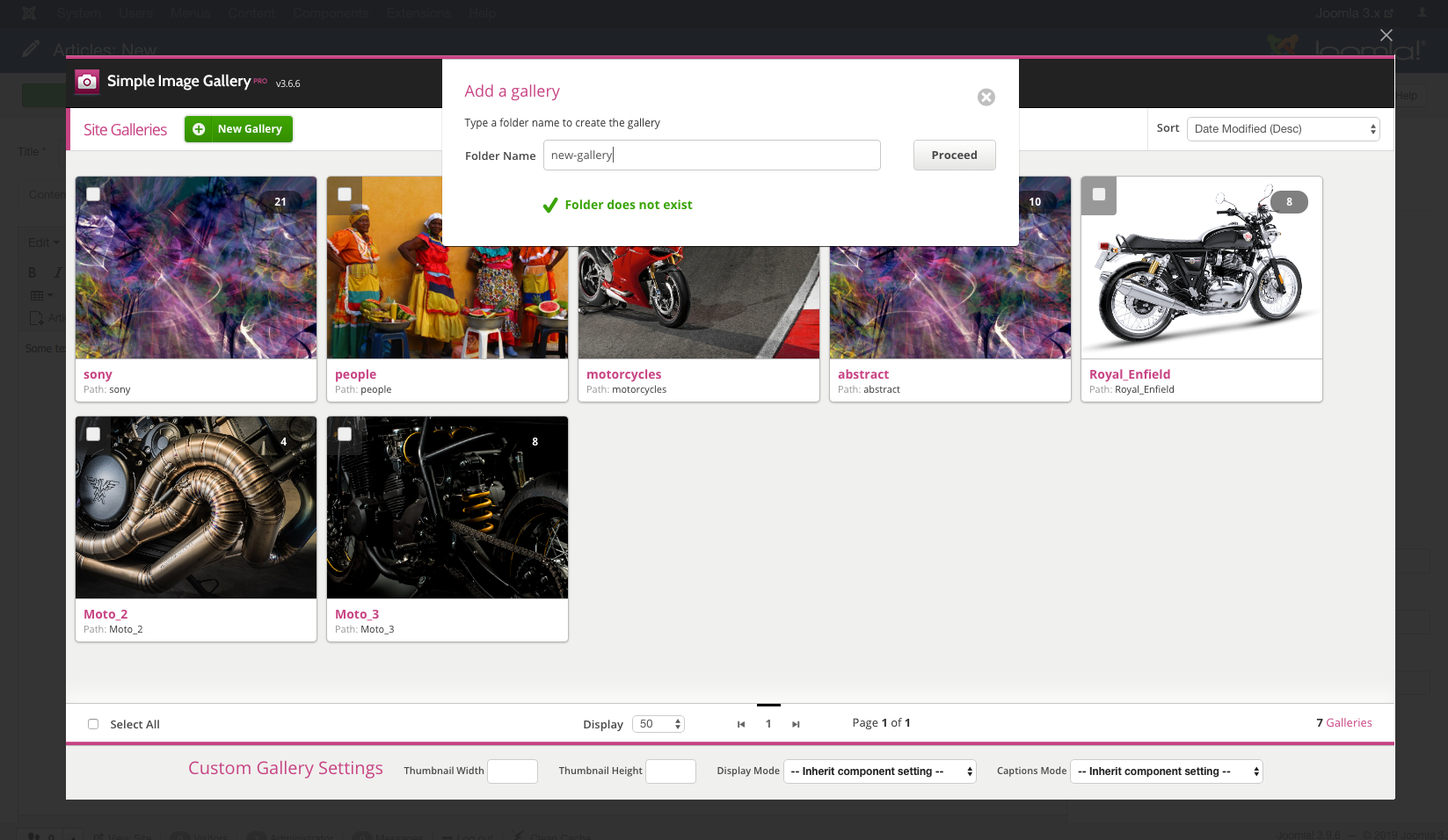
- Give it a name... Give it a name...
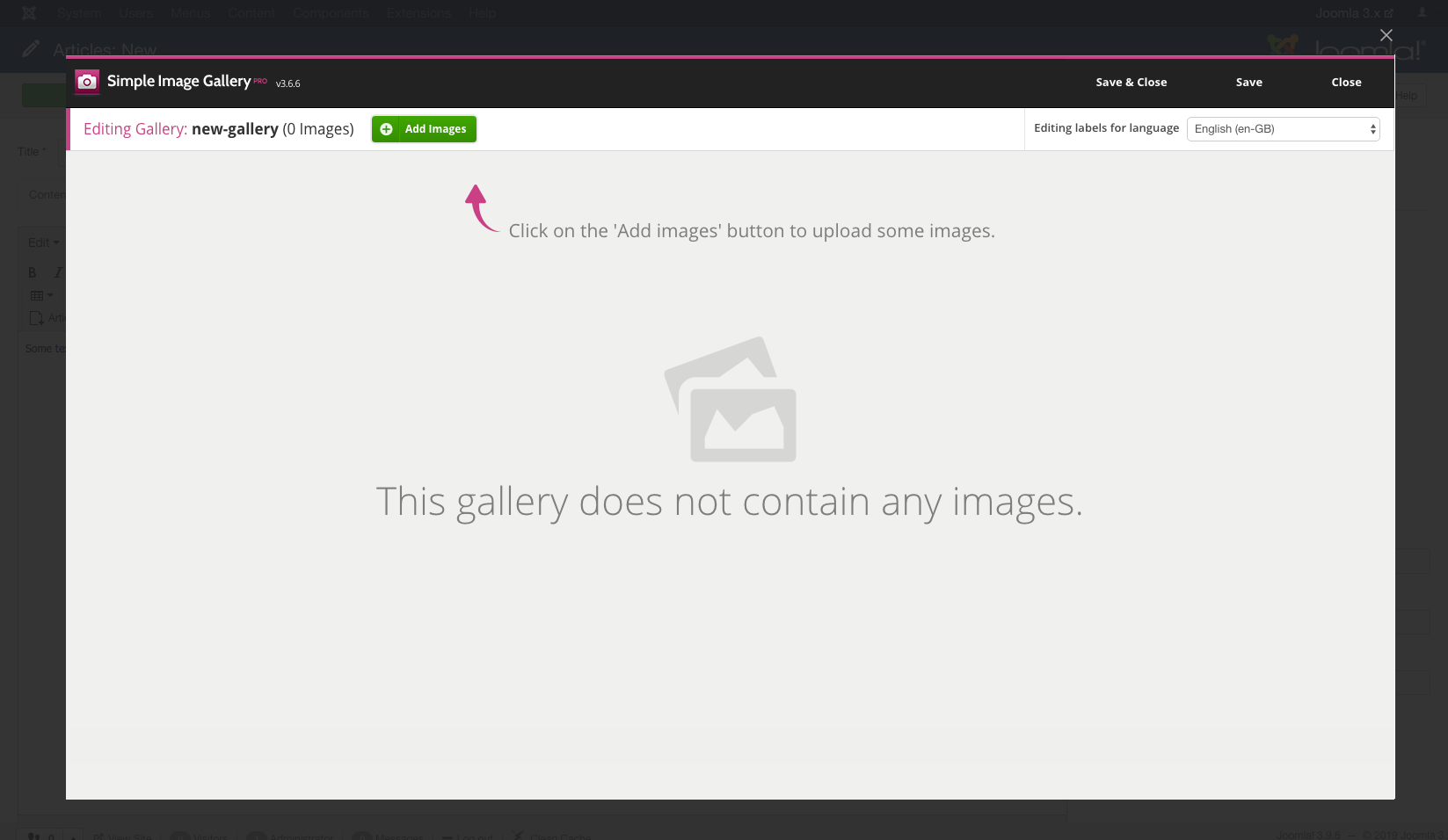
- Then add images (as previously) & hit "Save & Close" Then add images (as previously) & hit "Save & Close"
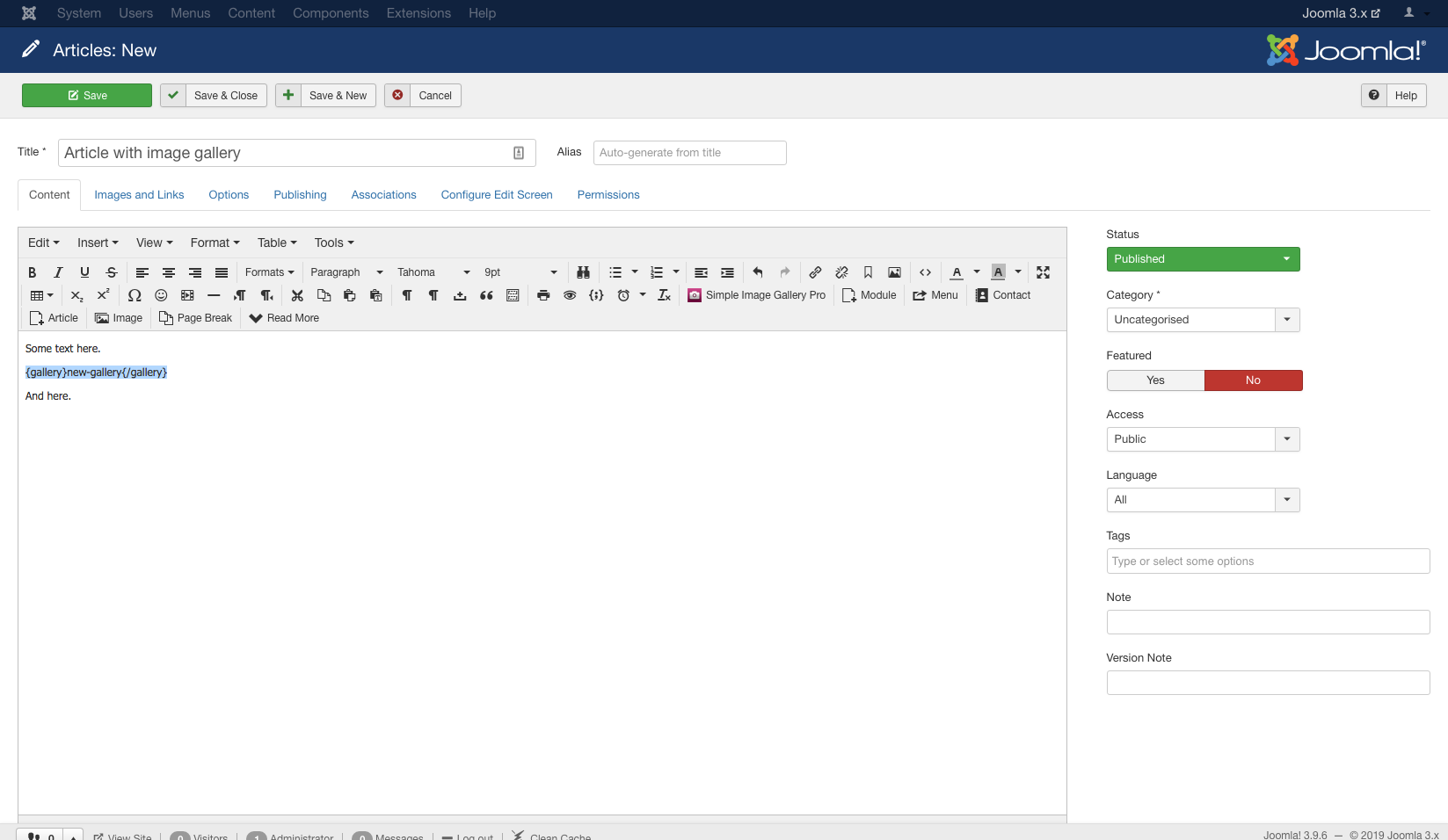
- A snippet is added to the editor window when you "Insert" a gallery A snippet is added to the editor window when you "Insert" a gallery
https://www.joomlaworks.net/extensions/commercial/simple-image-gallery-pro#sigProId15c13b7475
UPDATES
Already a customer? Download updates!