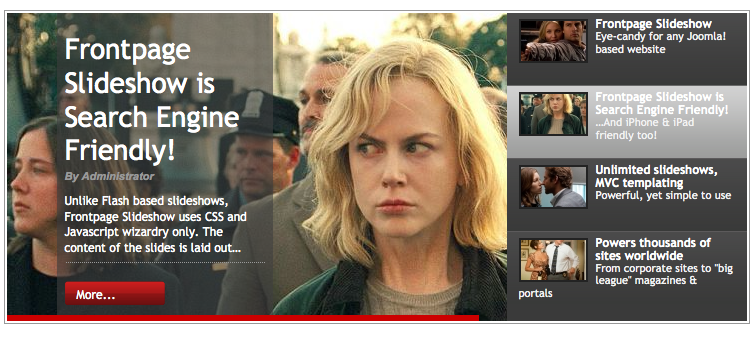
It creates an uber cool slideshow with text snippets laying on top of images, in a variety of templates and combined effects.
Frontpage SlideShow allows you to create multiple slideshows within your Joomla website (in different pages or even on the same page), comes with 8 uniquely styled templates, a powerful jQuery based slideshow engine with crossfade & carousel based transitions, text effects, statistics and can retrieve content automatically from Joomla articles/menus, K2 items and Virtuemart/HikaShop products!
Frontpage SlideShow is a pure CSS & JavaScript based slideshow system, which means it's dead simple to customize and it's both SEO and tablet/mobile friendly (in iOS, Android or Windows 8 smartphones & tablets).
And don't worry about how you'll manage your slideshows. Unlike other expensive/copycat implementations, Frontpage Slideshow has a dedicated Joomla backend component which you use to effortlessly manage your slideshows. Easy and fast.
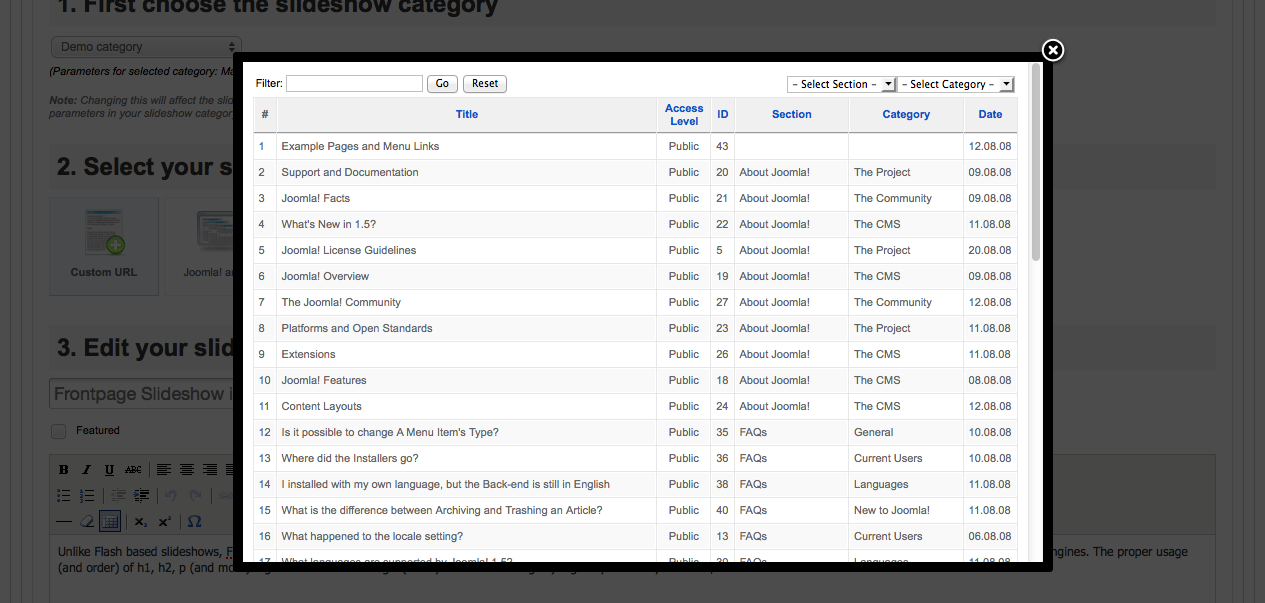
Moreover, it now natively supports content fetching from K2 and the most popular e-commerce components for Joomla: Virtuemart (versions 2.x & 3.x) and HikaShop. That means you quickly make up your slides just by selecting the source (e.g. a K2 item) and Frontpage Slideshow will fetch in a snap the title, description text and associated image!
FEATURES
- Fully compatible with Joomla 1.5 - 3.x
- Lightweight & frontend optimized slideshow engine, based on jQuery, offering crossfade & carousel transition effects between slides, lava-lamp style navigation, progress bar and text transition effects. That means you have 24 different effect combinations to use!
- 9 slideshow templates to get you started. Customizing them is very easy as all fonts, font-sizes, colors etc. are controlled by CSS. Building your own is a joy if you know your way around with MVC templating in Joomla.
- Responsive as of v3.10.
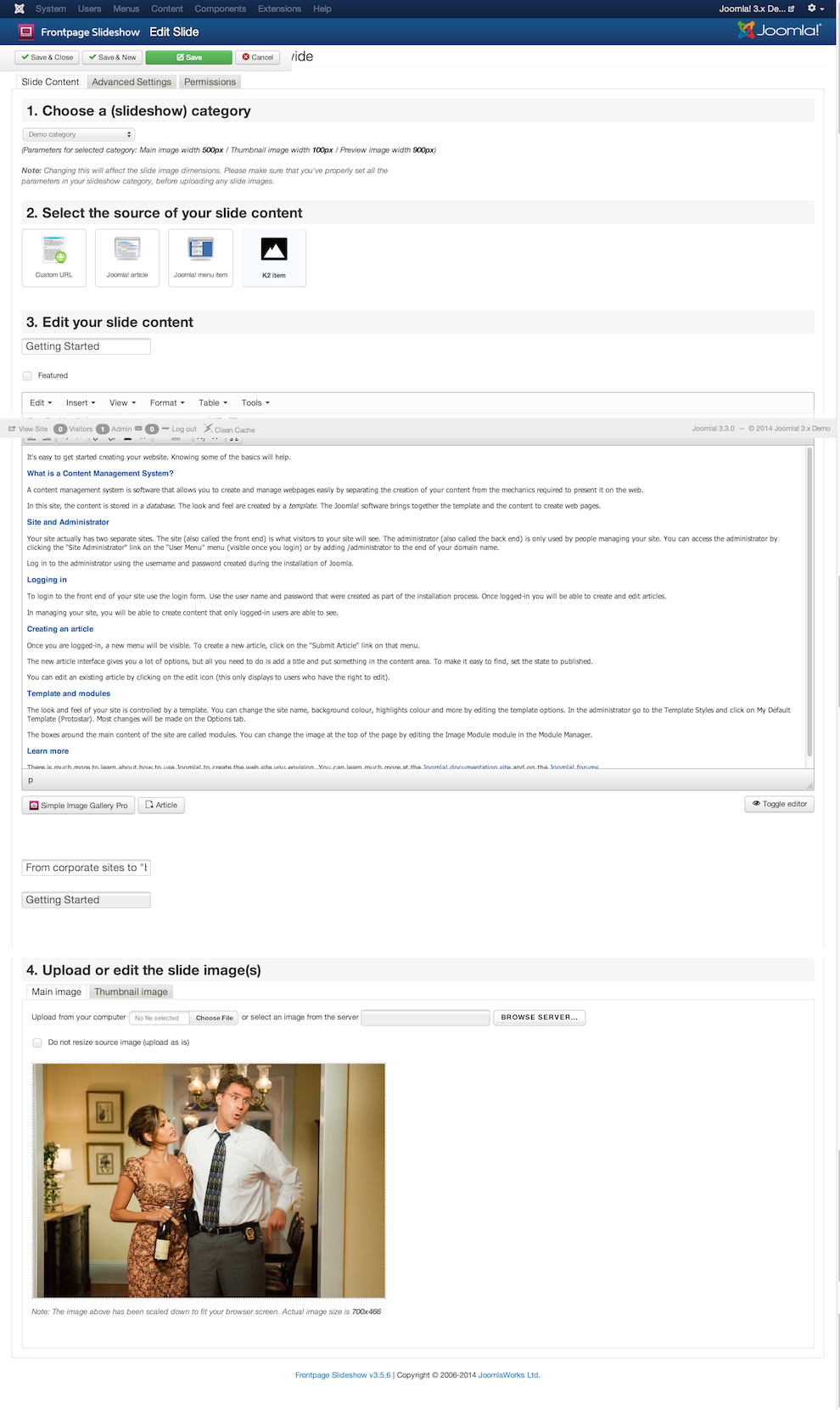
- The slide creation process is dead simple to use through guided steps.
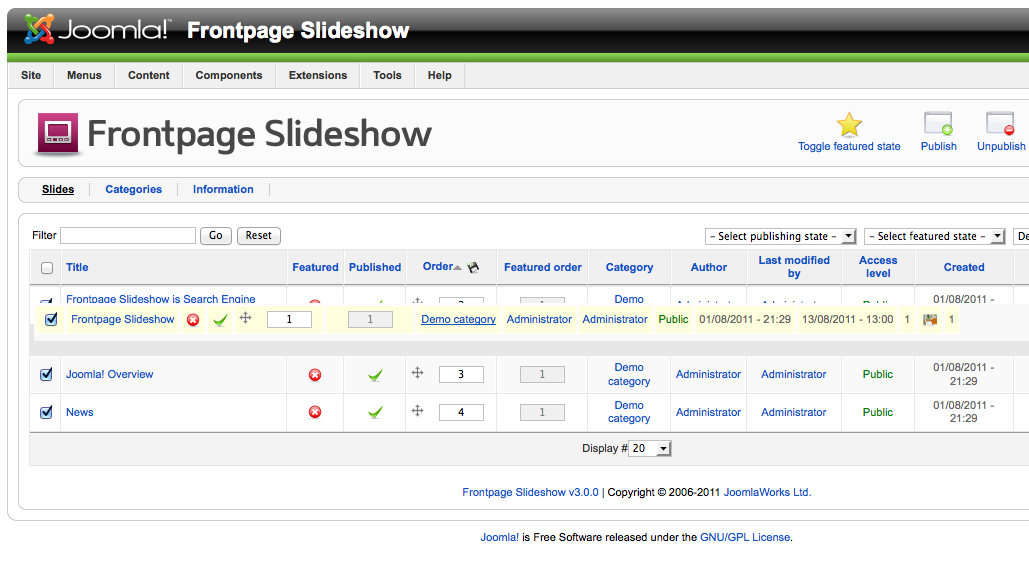
- Drag and drop slide re-ordering (per category) in the backend.
- Integration with Joomla articles and the most popular Joomla content extensions like K2, Virtuemart (2.x & 3.x) & HikaShop. That means Frontpage Slideshow can import the title, text, link and associated image from such components with a single clicks. For example, if you want to create a slide from a K2 item, all you have to do is select that K2 item and Frontpage Slideshow will automatically populate all slide fields, which you are free of course to edit as you wish!
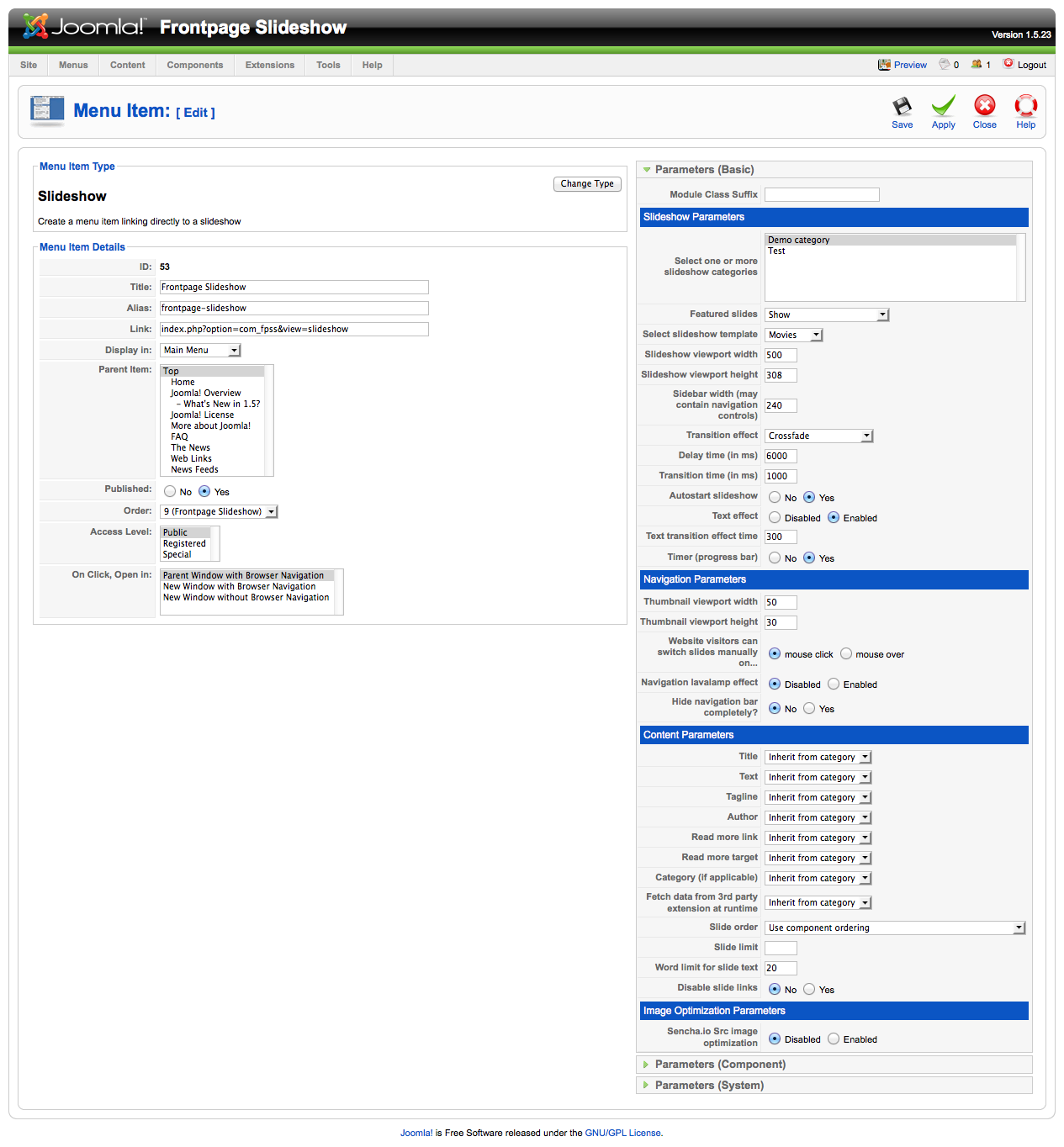
- You can now display your slideshows either via the module (or multiple module copies) or via the new component view. That means you can create a direct menu link to a specific slideshow, so you can e.g. assign a slideshow to your homepage, without messing with module positions and funky module display conditions. This option is ideal for portfolio based websites that want to assign slideshows directly to Joomla menu items.
- Multiple slideshows in your Joomla website, even on the same page (thanks to new slideshow engine) - so you can have a slideshow fetched in the component region and an other in a module or in combinations you define.
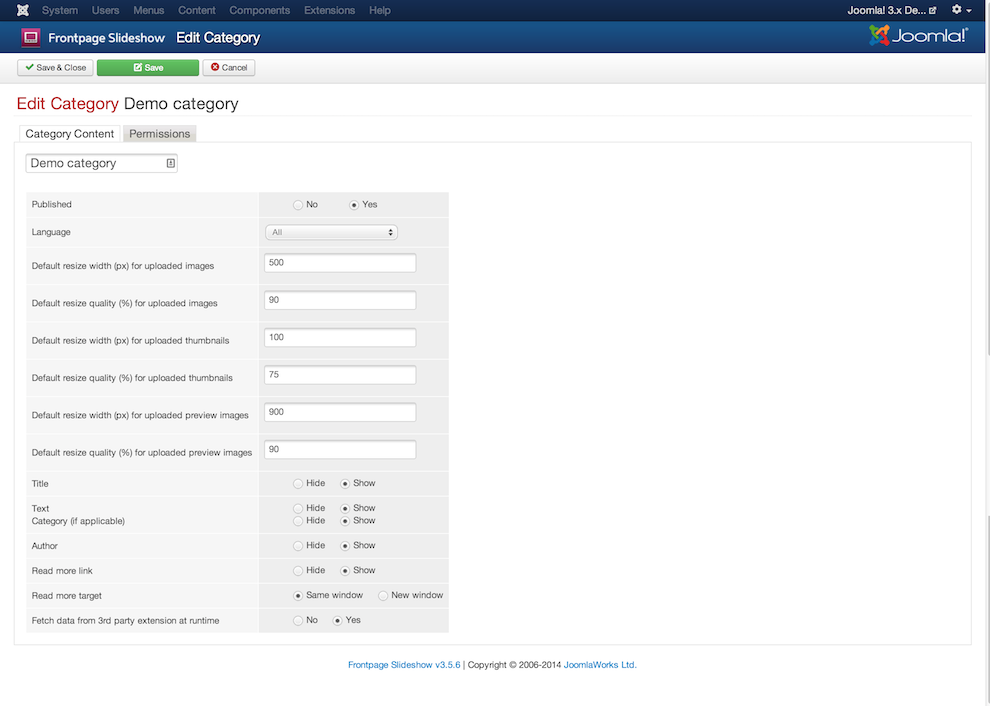
- Better slide image uploading using ajax (which means better previewing) and better slide image management (similar to K2's), with multiple copies of your original image created for better performance. And we got some cool new templates to show in the near future using these different size images...
- Statistics! Frontpage Slideshow will now track (by default) all slideshow clicks and create beautiful statistics graphs in the backend, so you can visually see which are your most popular slides in various timeframes. Using Frontpage Slideshow to promote products? Now you can now which products draw your customers attention more! Statistics can of course be disabled at any time if you prefer SEO over click tracking.
- Better server-side performance compared to version 2.x. A new caching layer for the module and the new slideshow content prefetching mechanism, which reduces the queries needed to retrieve slide content from third-party extensions (K2, Virtuemart & HikaShop). In high traffic or high content volume Joomla websites, this translates to significantly better performance.
- Better image compression on both desktop and mobile browsers with the integration of a 3rd party web service. This can lead to up to 50% image size reduction and mobile optimized serving of images when your site is viewed in mobile browsers on iPhone/iPad/Android etc.
- Full ACL integration with Joomla 2.5+.
- New version/update notification in Joomla 2.5+.
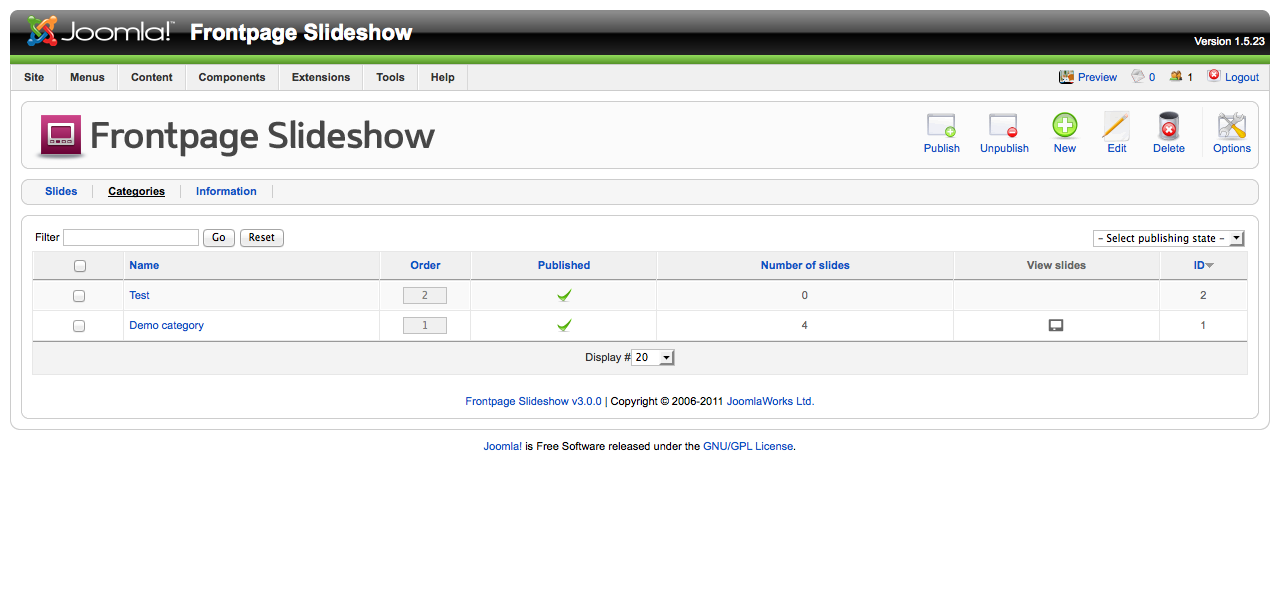
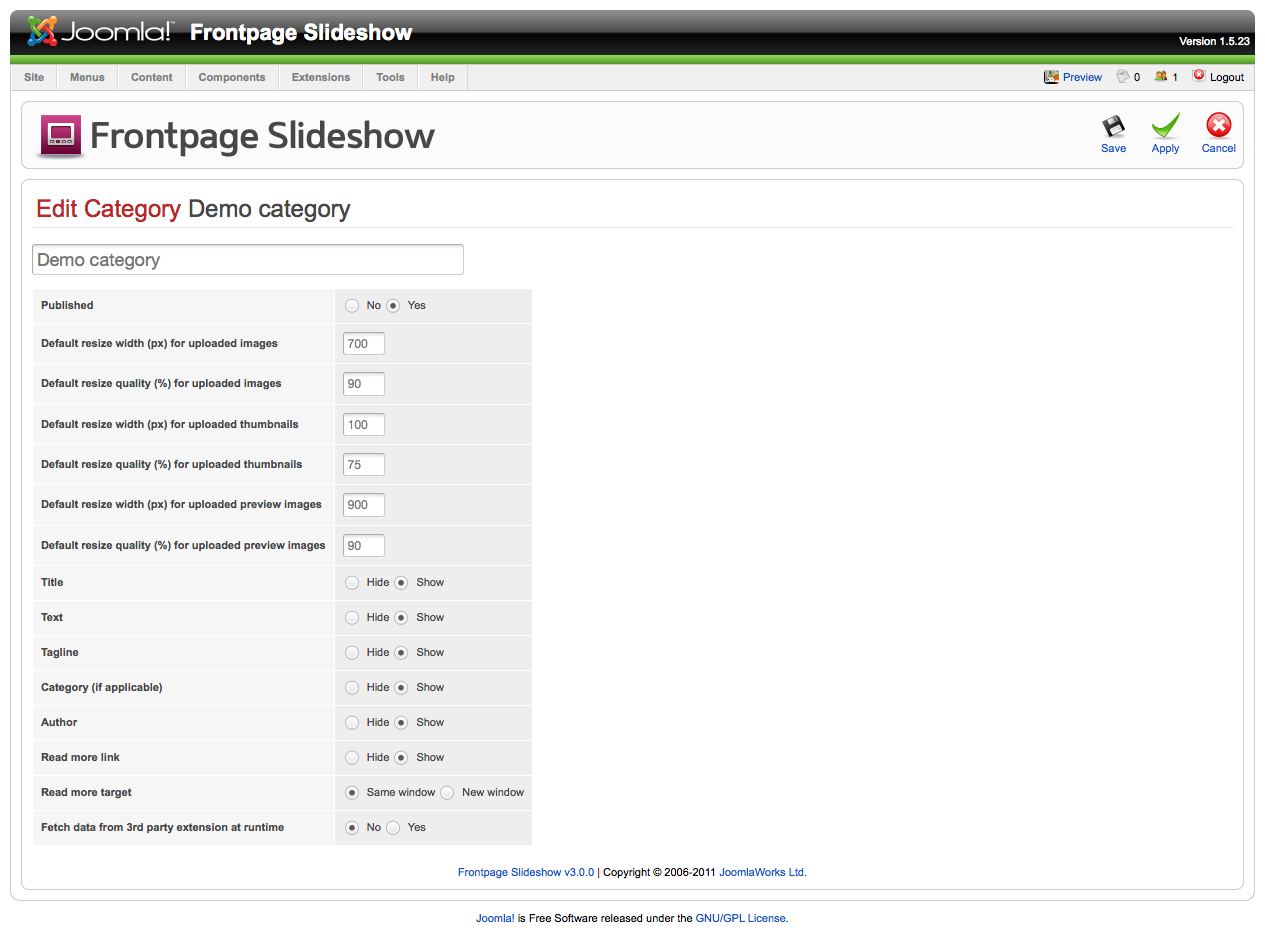
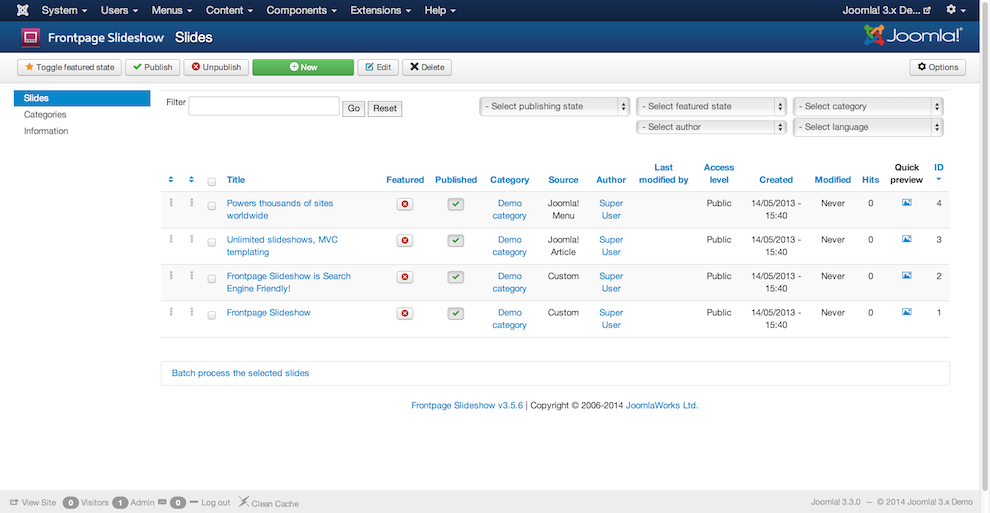
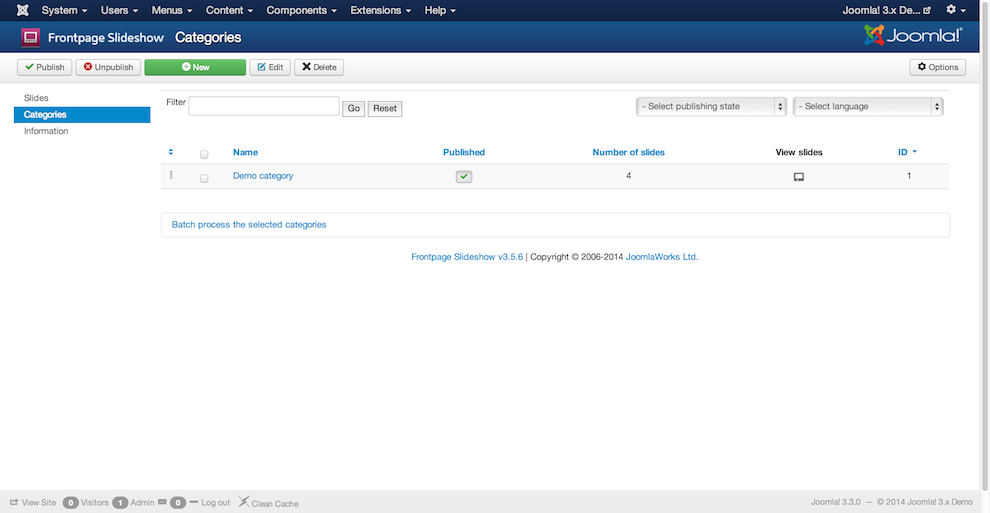
The component's user interface is very clean and easy to learn. It consists of only 2 areas to edit: your slides and your categories (slideshows).
Additionally, the styling/customization of each slideshow is entirely HTML/CSS based. You have full control over the layout of the slideshow and you can easily style it to suit your needs. No other website will ever share the same looks as yours!
As with all our Joomla extensions, Frontpage Slideshow uses MVC template overrides - so you can modify existing templates or create your own from scratch without a) hacking core extension code and b) worrying about future updates breaking up your changes.
Frontpage Slideshow has been successfully tested in all major browsers. The prebundled slideshow templates are fully compatible with Firefox, Chrome, Safari, Opera, Edge and Internet Explorer version 7 and above.
SCREENSHOTS
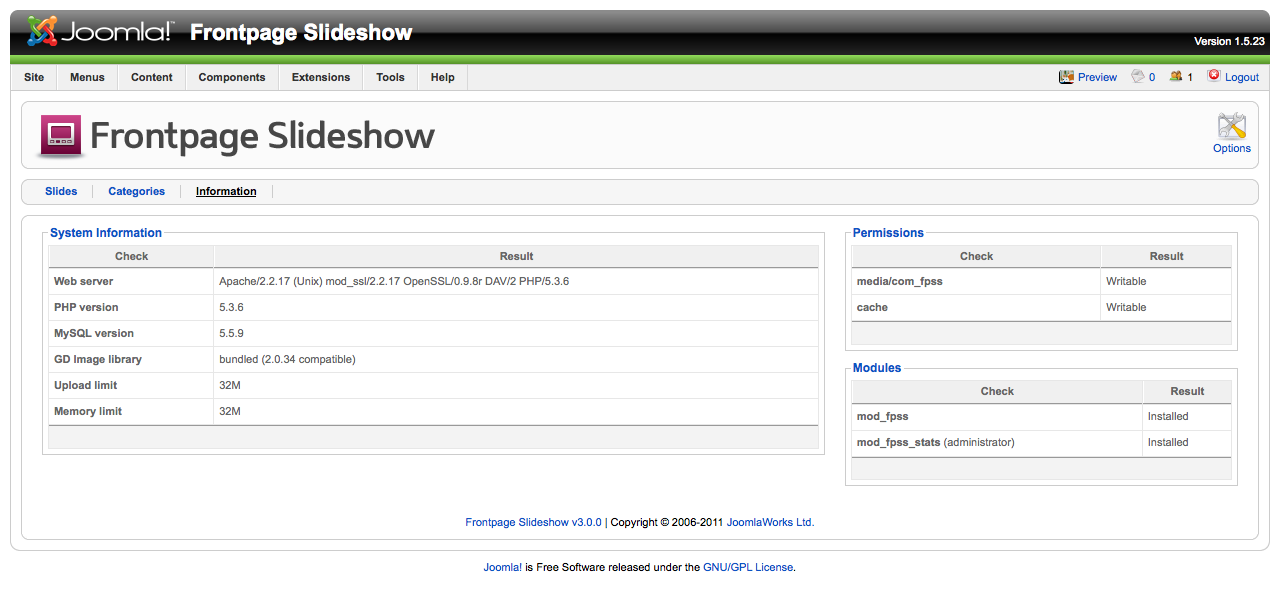
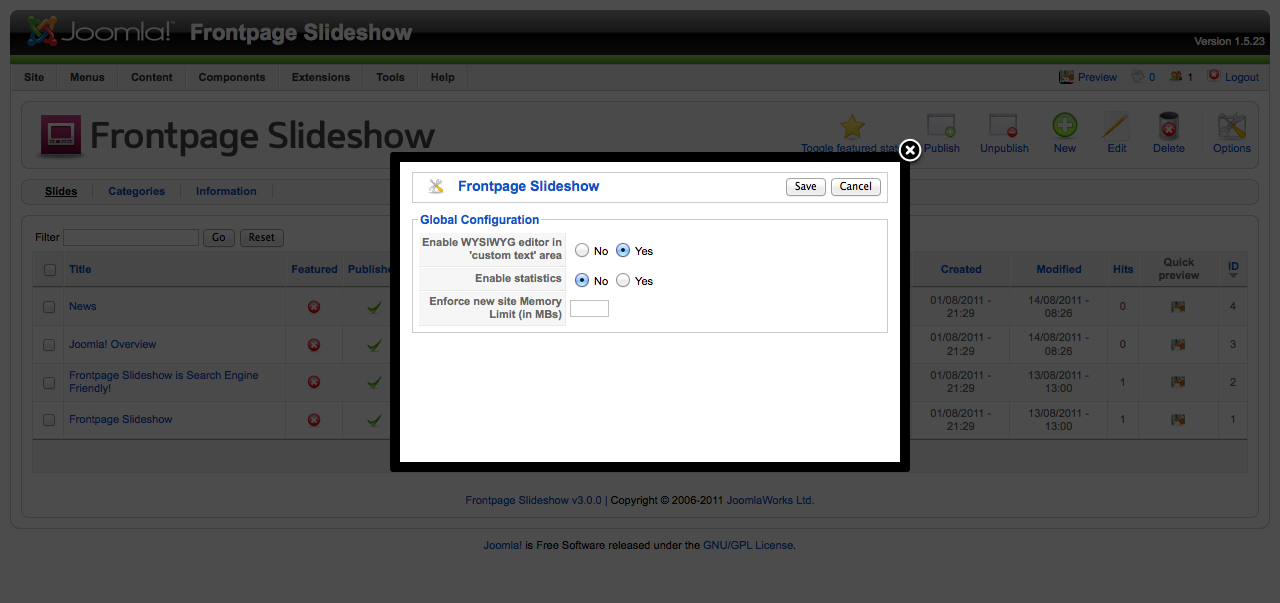
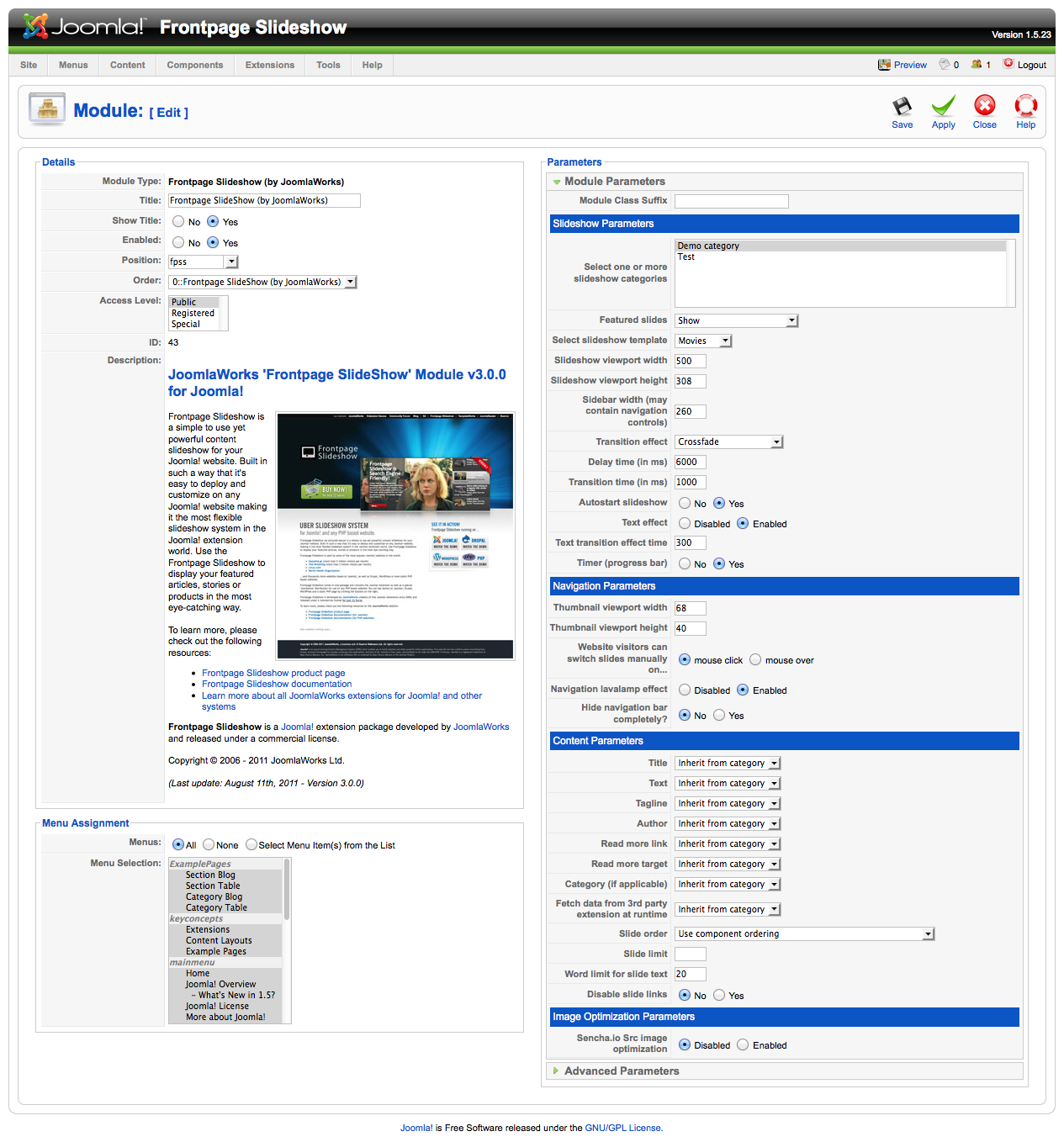
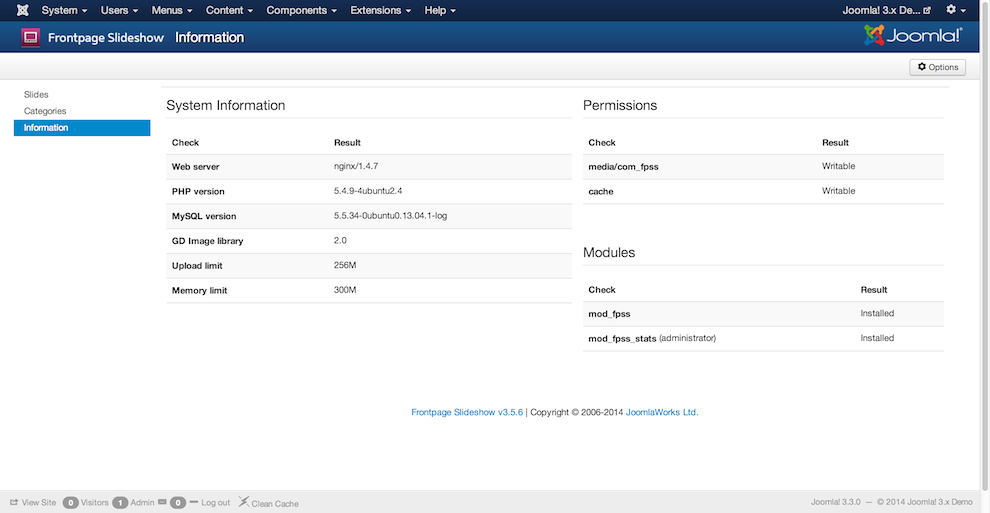
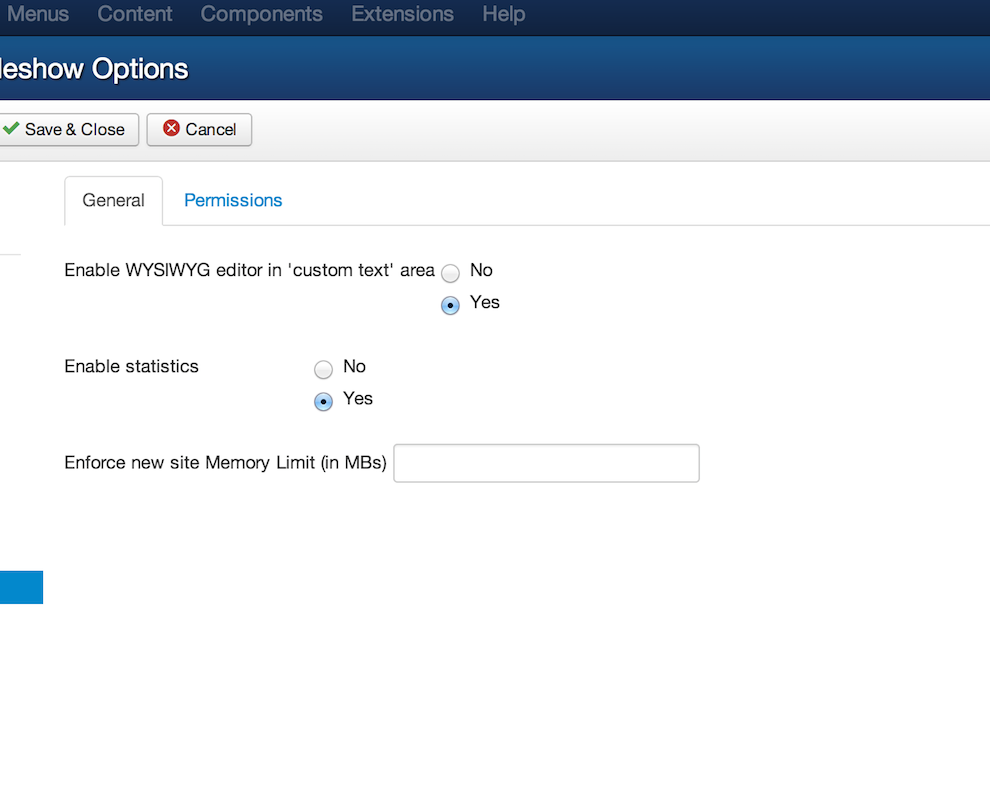
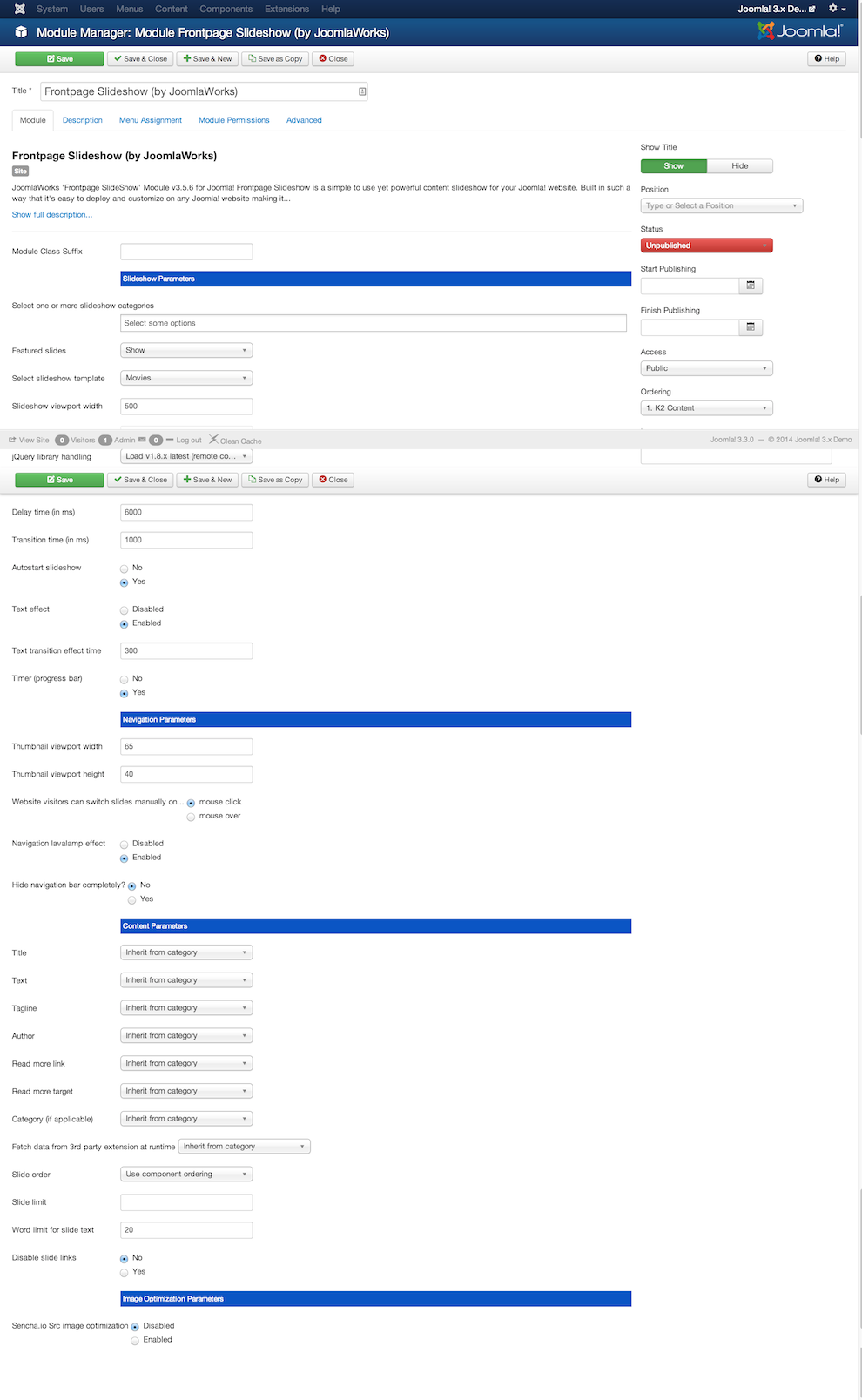
Backend interface screenshots taken from Joomla 1.5 (which is nearly identical to Joomla 2.5) & Joomla 3.x. Frontpage Slideshow uses the Joomla backend design guidelines so it will match the design of all these Joomla versions, from 1.5 to 3.x.
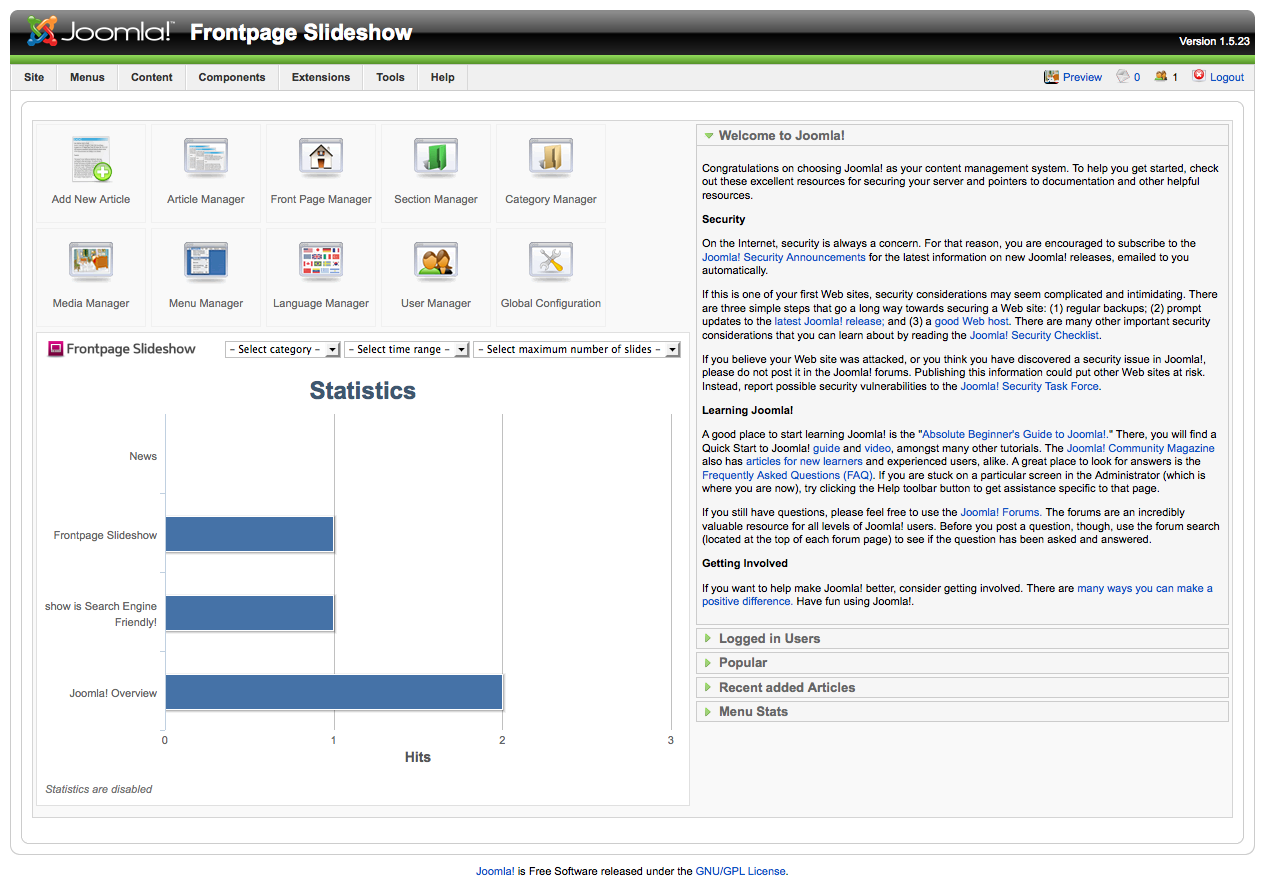
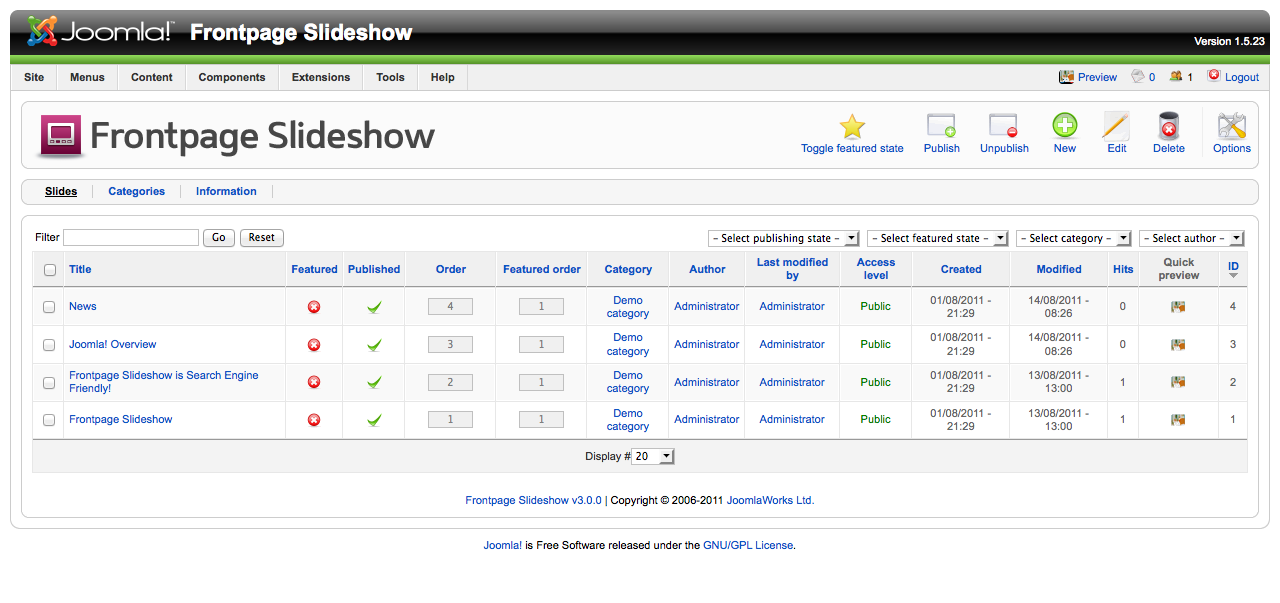
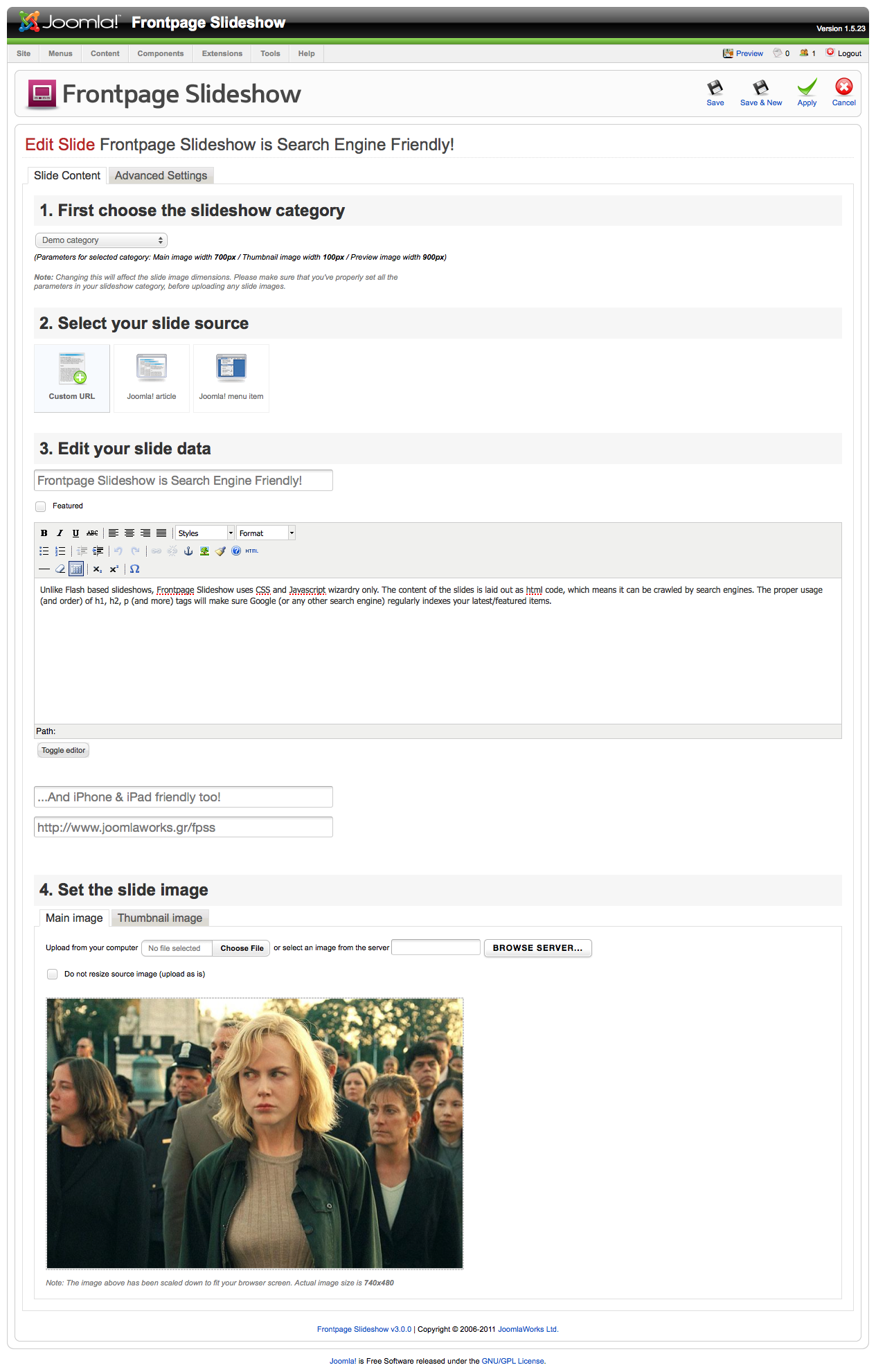
https://www.joomlaworks.net/extensions/commercial/frontpage-slideshow#sigProId17dbcc295d